
How to Build Canvas Apps Faster with VS Code and the Power Platform MCP Server

What if you could describe the canvas app you want in plain English, hit enter, and have a real, editable Power App waiting for you seconds later? Not a mock-up. Not some locked-down, AI-only creation. An honest-to-goodness canvas app you can open in Power Apps Studio and tweak with every skill you already have.
That's exactly what the new Power Platform MCP server for VS Code or Claude Code unlocks and in this post, you're going to learn how to use it two ways: to generate a new canvas app from a prompt, and to run an AI-powered code review on an app you've already built.
This isn't vibe coding. This isn't a new type of Power Apps app to learn. It's a faster front door into the canvas apps you already know and love.
If you'd rather watch the full walkthrough, check out the video here: Build Canvas Apps in VS Code with AI (NEW Power Apps Tool)
Why This Is Different (and Why You Should Care)
Before we dive in, here's the key idea: the MCP server doesn't replace canvas apps. It coauthors them with you. Whatever the AI generates is a standard canvas app with real controls, real formulas, and real YAML under the hood. You can open it in Power Apps Studio right now and edit it the exactly like you always have. Nothing locks you in.
That means this is a tool for two groups of people:
Canvas app builders who want a huge head start on the boring scaffolding (screens, galleries, navigation, filter formulas, forms)
Canvas app builders who want a second set of eyes reviewing their existing apps for bugs and improvements
Both are genuinely useful. Let's walk through each.
What You'll Need Before You Start
A quick heads-up: this post assumes you already have VS Code, GitHub Copilot, and the Power Platform MCP server installed and configured. If you're starting from a brand-new machine, don't worry, a dedicated setup walkthrough is coming that holds your hand through every prerequisite.
For today, you'll want:
VS Code (free)
GitHub Copilot (this post uses it, but Claude Code and other AI coding tools work too)
The Power Platform MCP server configured in VS Code
A Power Apps environment where you can create apps and connect to data

Part 1: Generating a Canvas App from Scratch
Here's where things get interesting. You don't start in VS Code. You actually start in Power Apps. The MCP server needs an app to co-author with, so step one is creating an empty shell.
Step 1: Create a Blank Canvas App
Head to Power Apps in your browser, click Create, and choose Blank app → Blank canvas app. Tablet or phone? It doesn't really matter. I went with tablet for this demo.
Give the app a name (I went with the highly creative "VS Code Video Demo") and save it. Saving first isn't optional; the MCP server needs something to point at.
Step 2: Enable Co-Authoring (Don't Skip This!)
This is the step a lot of people miss, and it'll cause you pain later if you skip it. In the canvas app, go to Settings → Updates → Co-authoring and flip it on. Save, let the app reload, and then pop back into Settings to confirm co-authoring is actually enabled.
Here's why this matters: the MCP server pushes its changes into the app live, while you might also have it open in Studio. Co-authoring is what makes that two-way street work.

Step 3: Add Your Data Source
The AI won't add data connections for you. That's on you. Click Data → Add data, search for SharePoint (or Dataverse, or whatever you're working with), and connect to your list. For this walkthrough, I connected to a SharePoint list called Employees.
Step 4: Save a Version You Can Roll Back To
Before you unleash the AI, save with version notes, something like "Ready to rock." It's not strictly required, but it gives you a clean restore point if the AI goes off the rails and you want to start over.
Then close the app in the browser. Yeah, actually close it. A fresh reload tends to avoid weird co-authoring hiccups. And just a good reminder, if at any point things don't look quite right, a quick refresh can help.
Step 5: Point VS Code at Your App
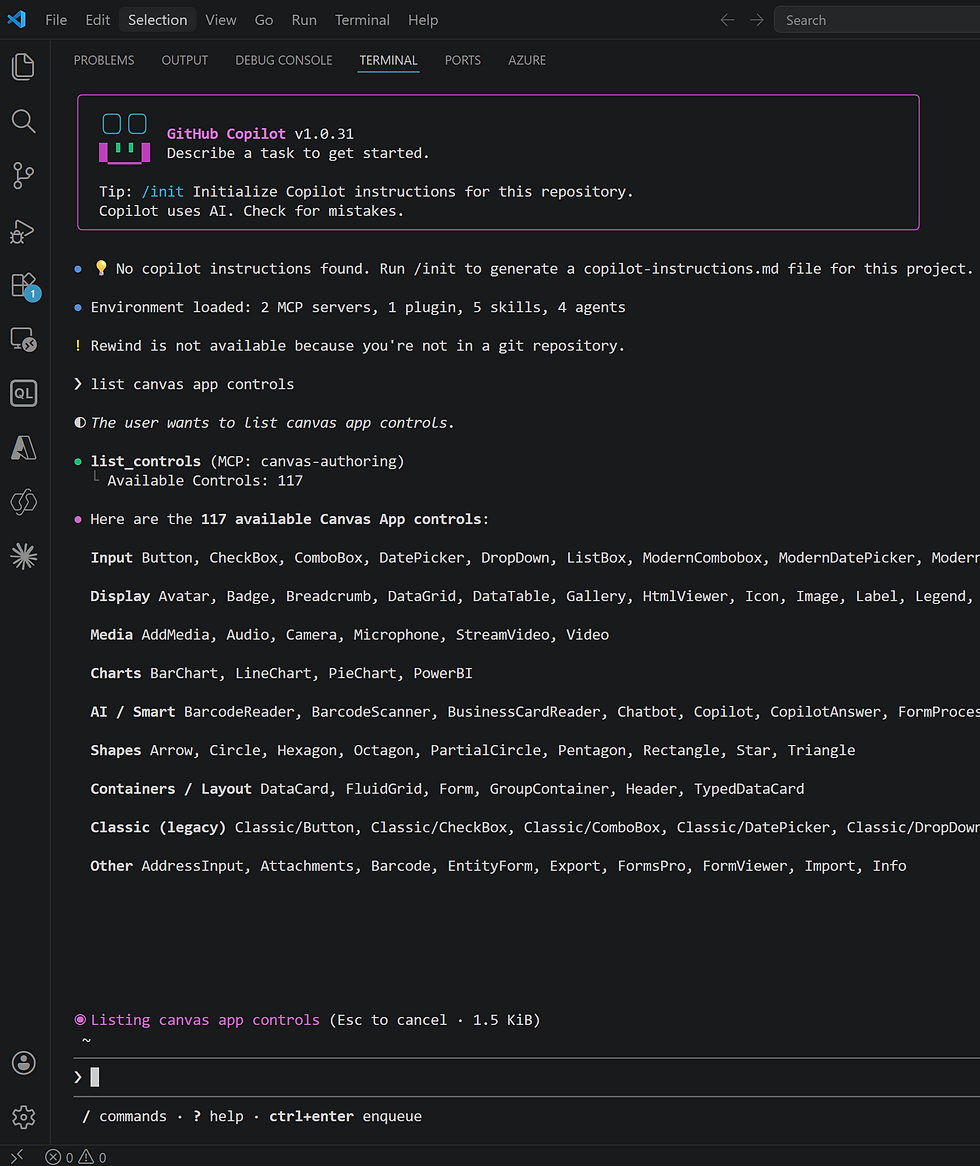
Grab the app's URL from your browser and head back to VS Code. Open the terminal, start Copilot (copilot), and type:
configure canvas app
You can also hit / to browse available commands if you can't remember it, just look for the canvas app configuration skill.

Copilot will check your .NET version (you'll need it installed), then ask for the URL. Paste in the full app URL and hit enter. Here's the slick part: the MCP server parses that URL to figure out the app ID and environment ID for you. No more digging around in settings panels for GUIDs. Kudos to the product team for that one.
You might see an error the first time, no big deal, that's usually just because the configuration file doesn't exist yet. It creates it for you. When it prompts you to restart Copilot, type exit, then copilot again to reload.
Step 6: Pick Your Model (and Be Smart About It)
Before you prompt, check the bottom-right of VS Code to see which model is active.
Type model to switch. You'll see options like GPT-5.4, Sonnet 4.6, and Opus 4.7.
Here's my 2 cents: Opus 4.7 is phenomenal, but it's expensive. In my test, a single "build me an app" prompt burned over 30% of my monthly capacity. For most work, Sonnet 4.6 is the sweet spot. It is fast, smart, and doesn't destroy your credit budget.
Step 7: Write a Good Prompt
Now the fun part. Type what you want, but give it some structure. Here's the prompt I used:
Create a canvas app for employee management. This app has a SharePoint list named Employees. Use that, build the app to display that data, provide search and filtering, and a way to create and edit the employee data. The app should have a welcome screen, a browse employee screen, and an edit/create employee screen. For the color palette, our primary color is #752874. Use complimentary colors. For design layout, use a very modern feel.
A few things to notice:
I named the exact data source (Employees)
I specified the screens I wanted
I gave it a color palette
I told it to be modern but didn't micromanage the design
Here's the key idea: don't try to cram everything into one prompt. This is a starting point, not a final deliverable. The more you pile in, the longer it takes and the more confused it gets. Get 80% of the way there, then iterate, either in Studio or by chatting with the agent for follow-ups.
Step 8: Approve the Tools, Authenticate, Wait
Partway through, Copilot will ask if it can use the MCP server's tools. Say yes and approve all tools from the server. That lets it do the canvas authoring without prompting you over and over.
You'll also need to authenticate to the MCP server. Just close the auth window(s) when they're done.
Don't panic when you see red text in the chat. It's usually the agent looking for a file that doesn't exist yet, then creating it. Red doesn't automatically mean broken. Leave the agent be and let it finish its plan.
Step 9: Witness the Magic
When it finishes, you'll see "Validation passed." That's not just a checkmark; that's when the app gets pushed to the server. Flip back to your browser tab and... the app is already there. No refresh, no republish. Co-authoring wrote it live.
Hit play. Click "Browse Employees." Your data is loaded, your gallery is populated, and there are your team members looking back at you.

Common Gotchas (and How to Fix Them)
This is where things get real. The AI does great work, but it's not perfect... especially in these early weeks. Here are the two mistakes I've seen most often, and how to fix them.
Gotcha #1: "I Click the Gallery Row and Nothing Happens"
If clicks don't navigate, it's almost always because the label on top of the gallery row is swallowing the click. The label's OnSelect is set to false instead of Select(Parent). Two ways to fix it:
Click the label, change OnSelect to Select(Parent) manually
Or tell the agent: "All the labels in the gallery have OnSelect set to false. Please change them to Select(Parent)."
Gotcha #2: Text Is Invisible or Clipped
Sometimes labels render black-on-black (so your data looks "missing") or they're too short and you get tiny scroll bars on every row. Both are easy fixes:
Flip the font color to white (or whatever contrasts with your background)
Enable Auto Height, or drag the label taller
Or again just tell the agent: "All of the gallery labels are clipping and need to be taller. Set the font color to white and set the labels to use Auto Height"
A pro tip: don't ask for three fixes at once if you want tight control. It usually handles it fine, but you'll get cleaner results one change at a time.
Gotcha #3: Changes Don't Appear in the Browser
Sometimes the AI makes a change, but clicking in the browser still doesn't work. This is almost always a coauthoring sync hiccup, not a code problem. Two things to do:
Save in the browser. The agent writes the change, but co-authoring waits for an auto-save or your manual save before it commits.
Refresh the browser tab.
After that, click again and it should work.
Part 2: Using AI to Review an App You've Already Built
Here's where this tool gets genuinely surprising. You can point the MCP server at an existing canvas app and ask it to do a code review.
I grabbed a random app I built months ago for a deep linking video. The app was totally untouched, no gotchas planted. Just honest old code. I figured it'd be a clean demo. Yep. Turns out past-me made some mistakes I didn't know about. Shocked? Me too. 🤣
Step 1: Restore or Open the App
Pick an existing app. In my case, I opened the versions panel and restored an older version to make sure I was working with the original. Then I opened it to edit.
Step 2: Enable CoAuthoring
If the app is older, it probably doesn't have co-authoring turned on yet. Go to Settings → Updates → Co-authoring and enable it, just like with a new app.
Step 3: Point VS Code at This App
Copy the new app's URL, head back to VS Code, and run configure canvas app again with the new URL. Exit and relaunch Copilot so it picks up the new configuration.
Step 4: Ask for a Review
Here's the prompt I used:
Connect to the server to get the current app and then do a review looking for bugs and places that I could easily improve the app. Only list your thoughts. Do not change the app this time.
That last line matters: "do not change the app" keeps it in advisor mode so you can read the review before committing to anything.

Step 5: Read Your Humbling Results
What it found in my app:
Delete didn't actually delete. I forgot to wire up the Remove() call. The trash can was just a pretty icon.
A gallery parameter could be wrapped better for performance
A variable wasn't being saved after the form's OnSuccess event
A few other minor improvements
This is why this matters: even if you never use this tool to build an app, using it as a second set of eyes on existing apps is a massive win. It's like having a senior dev review your code every time you ship.
Step 6: Let It Fix What You Choose
Once you've read the review, you can cherry-pick fixes. I asked it to handle the delete bug:
Will you fix bug 1 for me? Add the logic for delete.
Seconds later, it wrote the Remove() call for my trash can icon. Flipped back to the browser, clicked delete on an employee, and... gone. That's pretty slick.
What You Actually Built Today
In one session, you learned how to:
Set up a canvas app shell for MCP co-authoring
Generate a full employee management app from a single prompt
Spot and fix the common quirks (gallery clicks, label sizing, sync issues)
Run an AI code review on an app you've already shipped
Let the AI apply fixes while you stay in control
That's a lot. And the best part? Every app the MCP server touches is a normal canvas app. If the AI gets it 80% of the way, your existing canvas skills get it the rest of the way. No lock-in, no weirdness.
Ready to Level Up Your Power Platform Game?
This stuff is moving fast, and it's easy to feel like you're falling behind. You don't have to figure it all out alone.
If you want help building solutions like this, reviewing your existing apps, or figuring out how to sprinkle AI into your flows and apps in a way that actually makes sense for your business, the team at PowerApps911 is ready to help. Click the Contact button on this page and let's build something awesome together.


Comments