
How to Auto-Sort Email Attachments with Power Automate and AI

Do you, or someone you know, get buried in emails full of attachments that all need to go somewhere different? One file is a purchase order, the next is an invoice, the one after that is a resume, and somewhere in the pile is a photo somebody swore was important. If your day involves constantly triaging emails and dragging files into the right folders, this one is for you.
In this guide you will learn how to use a Power Automate cloud flow, a couple of AI prompts, SharePoint, and even Copilot to automatically sort attachments for you. The flow figures out what each file is, drops it into the right SharePoint folder, and pulls the important details into the file properties. The whole idea is to sprinkle a little AI into a process you are probably already running, so you get better results with a lot less manual work.
I will also show you a second way to do the same thing using Copilot in SharePoint, so you can decide which approach fits your situation best.
Prefer to watch instead of read? Check out the full walkthrough here: https://youtu.be/BgEeOe5NMSI
TL;DR: A Power Automate flow watches your inbox, loops through each email attachment, uses an AI prompt to label it as an invoice, purchase order, resume, or other, saves it to the matching SharePoint folder, and pulls the key details into the file properties. You can also do the data extraction with no flow at all using Copilot autofill columns in SharePoint (an M365 Copilot license is required).
The Setup: One Messy Email, Four Attachments
Here is the scenario. I asked my coworker to send me a few things: a purchase order, a resume, some invoices, and a cute picture for good measure. What I really wanted was for everything to land in the right place automatically. What I got instead was a single email with everything but the kitchen sink crammed into it, attachments and all.
That is actually perfect, because it is exactly the kind of mess this flow is built to clean up. When that email lands, all four files need to be sorted, saved, and have their key data pulled out. Let us look at how the flow handles it.

What Does This Power Automate Flow Actually Do?
Before we get into the details, here is the big picture of what the flow does each time that email arrives:
The email trigger kicks off the flow.
It grabs the attachments and loops through each one.
An AI prompt looks at each file and categorizes it as a resume, purchase order, invoice, or other.
The file is saved to a SharePoint folder that matches its category.
Based on that same category, a specialized prompt extracts the important details and writes them to the file properties.
With four attachments, the loop runs four times. If only one file came in, it would run once. Simple as that.

Step 1: Trigger the Flow When an Email Arrives
The flow starts with the When a new email arrives trigger. This is where you decide what counts as a file worth sorting. You can scope it to a specific mailbox, a specific sender, only emails that have attachments, or only mail that lands in a certain folder. There are a lot of options here, so configure it to match how the mail actually shows up for you.
A common real-world pattern is a shared or generic mailbox. Customers will set up something like invoices@yourcompany.com, and the flow fires every time something lands there. That keeps the automation tightly focused on the mail you actually want to process.
Step 2: Get and Loop Through the Attachments
Next, add a Get attachments action. Here is the key thing to understand: attachments come back as a table, not as a single file. That is why we have to loop. For each item in that table, we add a Get attachment action that pulls the actual file content using the message and the attachment ID for the item we are currently on.
This is the part that lets one email with four files turn into four trips through the rest of the flow. Pro Tip: Loops like this can be confusing but they are necessary, so if you are building your flow and it wants to loop, ask why it wants to loop instead of trying to get rid of it.
Step 3: Use an AI Prompt to Categorize Each File
This is the first bit of sprinkling some AI, and honestly it is the part that does the heavy lifting. We add a Run a prompt action and pass in the file. The instructions are short and direct: analyze this file and choose one of the following categories: resume, purchase order, invoice, or other.
Here is the nice thing about a large language model. I did not have to explain what a purchase order or an invoice actually is. It already understands the difference. If you have unusual documents, you absolutely can give it more specific rules, like 'if the file contains these fields, treat it as this category.' But for most everyday documents, a generic prompt works great.
Make It Return JSON, Not Text
At the bottom of the prompt I ask it to respond with the category plus the file content, formatted as JSON, with exactly two fields: my category and my contents. Then on the right side of the action, I switch the output from the default Text to JSON.
This matters more than it sounds. When the output is JSON, you can work with each piece as its own object later in the flow. So you can grab the category to decide where to save the file, and grab the contents to feed the next prompt. A lot of the time in Power Automate, JSON output is what you want.

Step 4: Save the File to a Dynamic SharePoint Folder
Now that we know what the file is, we save it with a Create file action in SharePoint. The trick is in the folder path. Instead of hard-coding one location, I set it to something like Shared Documents/AI Prompt Router/ and then add the category as dynamic content on the end. So when the prompt returns 'invoice,' the file lands in the invoice folder. When it returns 'resume,' it lands in the resume folder.
When you write a file to a SharePoint or OneDrive path that does not exist yet, it gets created for you. The first time I ran this, the invoice folder was not there. The flow made it and dropped the file in. No setup required.
For the file name I use the name from Get attachment, and for the content I use the file bytes from that same action. That is all it takes to put each file exactly where it belongs.
Step 5: Switch Based on the Category
With the file saved, we use a Switch action to decide what to do next. Think of a Switch as a clean way of saying 'if it is this, do that.' We point it at the category and set up a case for each value: one for invoice, one for resume, one for purchase order, and one for other.
Inside each case we run a second, specialized prompt against the file content we captured earlier. This is where having that JSON output pays off, because we can feed the 'my contents' value straight into the next prompt. Each case has its own prompt tuned for that document type, and once again I set the output to JSON so I can use the results in the next step.
Step 6: Update the File Properties
The last piece in each case is an Update file properties action. We already created the file and uploaded it, so now we write the extracted details into its SharePoint columns. What you capture depends on the document:
Invoices: name, amount, invoice number, and invoice date.
Purchase orders: name and amount.
Resumes: a short description and the person's name.
Other: nothing. We just let those files sit in the folder.
Your mileage will vary, and that is the point. You can capture whatever metadata matters to your business. The big takeaway is that a couple of small prompts can help you understand your content and pull out the pieces you care about, automatically.
Why Not Just Use One Big Prompt?
Good question, and one I asked myself. I could have written a single prompt that says 'figure out the category, and if it is an invoice do this, if it is a resume do that.' But that prompt would have gotten big, and the instructions could start to conflict with each other. It also tends to use more credits to run.
Splitting it into one prompt to identify the document and a separate, specialized prompt to process it just felt cleaner when I was building it. I am not going to call it a best practice. I would genuinely encourage you to test it both ways and see which uses fewer credits and gives you better results. The point is to understand the tools and the tradeoffs, then pick what fits.
Can SharePoint Extract the Data Without a Flow? (Copilot Autofill Columns)
Here is the bonus method I promised. Everything above uses AI credits in the flow to extract data. But what if SharePoint could do the extraction for you the moment a file lands? That is exactly what Copilot in SharePoint autofill columns do.
Over on a SharePoint site with M365 Copilot set up, I have an invoice library. Drop a file in, wait a few seconds, and the columns fill themselves in: invoice amount, date, name or number, and vendor name. You will see a little sparkle icon next to each value, which tells you Copilot generated it.

How to Set It Up
In the library, I used the Copilot 'ask a question' option and typed something like:
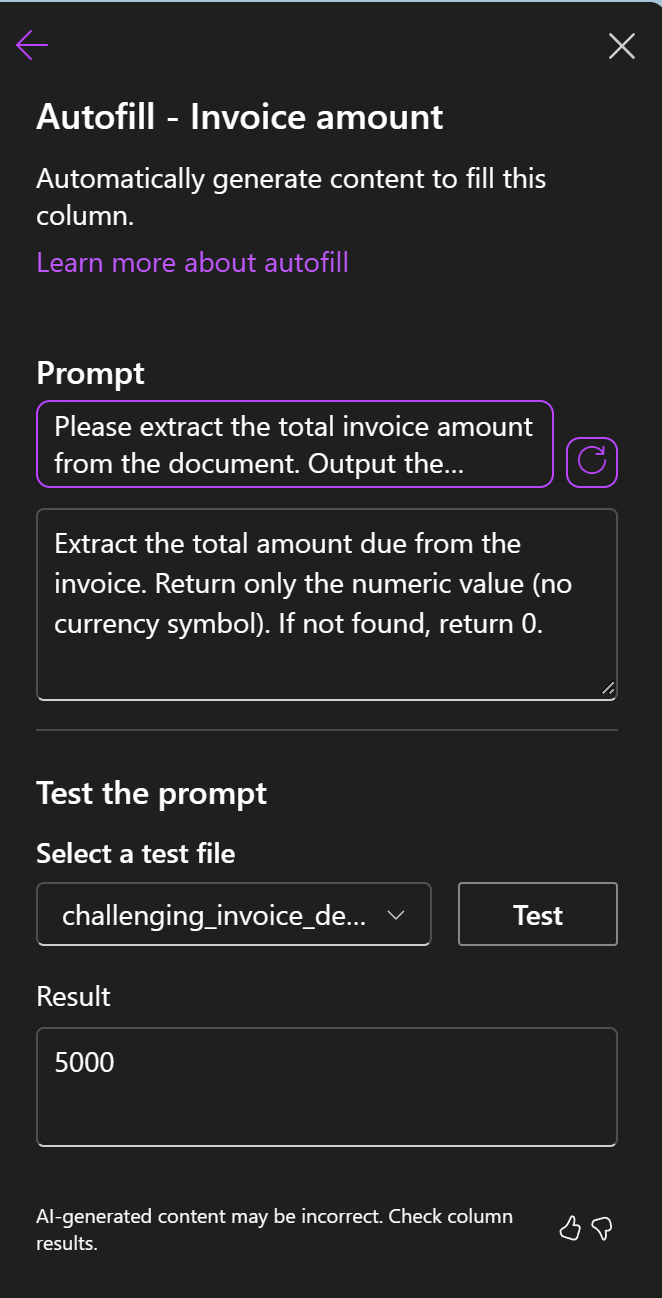
This document library has invoices. Create autofill columns to extract vendor name, invoice number, invoice date, and invoice amount.Copilot reviews the content, confirms it can find that information, and defines the new columns for you. It even writes the column-level prompts itself. For example, the invoice amount column ended up with instructions to extract the total amount due and return it as a number without currency symbols, returning 0 if it is missing. I did not type any of that.
One requirement to know up front: you need an M365 Copilot license to set this up. But once it is configured, anyone who drops a file in that library gets the columns filled automatically. No flow steps, no extra credits for the extraction. This is very interesting.
Which Approach Should You Use?
So how do you choose? Maybe you don't? What if you combine them?
Imagine the flow from the first half simply sorts each file into the right library, and each of those libraries already has autofill columns set up. You would not need the second layer of prompts in the flow at all. The data extraction would just happen on its own. Two techniques, working together.
Keep It Tight: Models and Credits
Whichever path you choose, a couple of habits will save you money. First, do not overdo the prompts. I have seen people write ten pages of instructions. They work, but all of that has to be ingested and processed, and it burns more credits. Keep prompts as tight as you can while still getting good results.
Second, pick the smallest model that does the job. I used Sonnet 4.6 here because it is a strong choice today, but for simple categorization a lighter model like GPT-4.1 mini would likely work fine and cut credit use considerably. Save the big reasoning models for when you actually need them.
Key Takeaways
If you remember nothing else, remember these:
Attachments come into Power Automate as a table, so you have to loop through them.
One AI prompt to categorize, then a specialized prompt per type, is cleaner and cheaper than one giant prompt.
Set your prompt output to JSON so you can reuse the category and contents later in the flow.
Write files to a dynamic SharePoint folder path. If the folder does not exist, SharePoint creates it for you.
Copilot in SharPoint Autofill columns can extract data automatically with no flow steps and no extra credits, if you have an M365 Copilot license this is interesting.
Use the smallest model that gets good results, and keep prompts tight, to control credit usage.
Frequently Asked Questions
Do I need a Copilot license for this?
Not for the Power Automate version. The flow uses AI prompt actions that run on AI Builder or Copilot credits, so no Copilot license is required there. You only need an M365 Copilot license for the second method, the Copilot autofill columns in SharePoint.
Why output JSON instead of plain text?
JSON gives you structured fields you can reference individually later in the flow. With JSON you can grab the category to decide where to save the file, and grab the extracted contents to feed the next prompt. Plain text would force you to parse it yourself.
Will this work with a shared or generic mailbox?
Yes, and that is one of the most common real-world setups. You point the trigger at the shared mailbox, like invoices@yourcompany.com, and the flow runs every time a message with attachments lands there.
Why not use one big prompt to do everything at once?
You can, but a single prompt that both categorizes and extracts tends to get long, its instructions can start to conflict, and it usually costs more credits to run. Splitting it into a categorize prompt plus a specialized extraction prompt keeps each one focused. Test both ways and compare results and credit usage for your own documents.
Do I have to create the SharePoint folders first?
No. When the cloud flow writes a file to a folder path that does not exist yet, SharePoint creates the folder automatically. The first run will build the invoice, resume, purchase order, and other folders for you.
Which AI model should I choose?
Use the smallest model that gives you good results. A strong general model like Sonnet 4.6 works well, but for simple categorization a lighter model such as GPT-4.1 mini may do the job for far fewer credits. Save the heavy reasoning models for tasks that genuinely need them.
Wrapping Up
That is the whole thing. You took a messy email full of mixed attachments and turned it into neatly sorted SharePoint folders with the key details extracted into file properties, all automatically. You saw how to do it with AI prompts inside a Power Automate flow, and how to do it with Copilot autofill columns in SharePoint.
None of this is a giant rebuild. It is not an agent or a pile of new infrastructure. It is a flow you might already have for moving files around, made smarter by sprinkling in a little AI. That is the mindset I want you to walk away with: look for the small places where AI can do the boring work for you.
Need a Hand?
If you want help building solutions like this, or you are looking for more ways to get Copilot working across your business, the team at PowerApps911 can help. We do Power Platform consulting and training every day, and with our friends at TMC we can even tie this kind of automation into your Dynamics 365 Business Central or wider ERP. Reach out and let us build something great together.


Comments