
Mastering API Calls in Power Apps: A Comprehensive Guide

Updated: Aug 3
APIs can seem daunting at first, especially for those new to Power Apps. But don't worry! The core concept is straightforward. An API returns data in a structured format called JSON. The Power Platform equips you with the tools to fetch that data and transform it into something usable. This guide will walk you through every step using a free public API, ensuring you can follow along without any setup, accounts, or authentication.
In this walkthrough, we will learn how to call a real public API from Power Apps using a Power Automate flow. We'll parse the JSON response with the ParseJSON function in Power Apps, handle various data types (text, numbers, images, and nested arrays), reshape the data into a clean Power Apps collection, and finally make the call dynamic with query parameters and a dropdown.
No authentication is required for the example API used in this post, so anyone with a Power Apps premium license can recreate the demo end-to-end.
Prefer the video walkthrough? Watch the full tutorial here: https://youtu.be/pwZoUsuLBMQ

Why Do APIs Seem Challenging?
An API can be as simple as a URL that returns text. Most public APIs return data in JSON, which is plain text wrapped in curly brackets and square brackets.
The reason APIs feel hard is that the first time you look at a raw response, you are staring at a wall of unformatted text with no obvious starting point. Once you understand the two simple shapes JSON uses—records and tables—the format becomes readable and usable.

If you have ever written a record in Power Apps using curly brackets (for example, { Name: "Shane", Role: "CAIO" }), you have already used the same syntax JSON employs. The only new piece is square brackets, which represent a table of those records.
What is the Easiest Free API for Practicing in Power Apps?
DummyJSON (*https://dummyjson.com) is a free, no-authentication public API that returns realistic test data for products, users, recipes, and more. It is ideal for learning Power Apps and Power Automate API techniques without risk.*
DummyJSON is the recommended sandbox for this tutorial because every endpoint returns predictable JSON, and no signup or API key is required. The walkthrough below uses the recipes endpoint at https://dummyjson.com/recipes, which returns 30 recipes by default. Each recipe includes a name, image, rating, cuisine, a tags array, and other relevant fields.

How Do You Preview an API Response Without Writing Any Code?
You can easily preview an API response by pasting the API URL directly into a web browser. For any GET request, the browser will display the raw JSON response on screen. This is the fastest way to confirm that the API works, see the field names, and understand the response shape before building anything in Power Automate. This same trick works for SharePoint REST and Microsoft Graph endpoints when you are signed in.
How Do You Read API Documentation Efficiently?
Every API has documentation, and every set of documentation answers the same three questions: which URL to call, which method to use (GET or POST), and which parameters are supported. If the documentation is dense or written for a different programming language, paste it into Copilot, ChatGPT, or another AI assistant and ask for a Power Platform-friendly explanation. That is a legitimate and effective shortcut.
How Do You Call a REST API from Power Apps?
Power Apps cannot call REST APIs directly. You must build a Power Automate flow that uses the HTTP action to call the API, then return the response to Power Apps.
Licensing note: the HTTP action in Power Automate is a premium connector. Custom connectors are also premium. Any solution that calls an external API from Power Apps therefore requires premium Power Apps or premium Power Automate licensing for every user who runs the app.
Steps to Create the Flow
In your Power App, click the ellipses menu, then Power Automate, then Add flow, then Create new flow, and finally Create from blank.
Name the flow clearly, for example, "Video Recipes," so you can find it later.
Click New step, search for HTTP, and select the HTTP action (the one labeled Premium).

How Do You Configure the HTTP Action?
The HTTP action requires three pieces of information: a method, a URI, and (optionally) headers, queries, or a body. For the recipes example, the configuration is straightforward:
Method: GET (used to retrieve data from an API).
Headers, Queries, Body: leave empty. The Dummy JSON recipes endpoint requires no additional parameters.
Two HTTP methods cover most Power Platform API scenarios: GET retrieves data, and POST sends data. The API documentation always specifies which method to use for each endpoint.
How Do You Return JSON from Power Automate to Power Apps?
Add a "Respond to a Power App or flow" action at the end of the flow, create a Text output, and set its value to the Body of the HTTP action.
The "Respond to a Power App or flow" action is what makes the flow callable from Power Apps and allows the flow to return data. To pass the JSON response back, click "Add an output," choose Text, name the output "myJSON," and set its value to the Body output of the HTTP action. (Click "See more" if the Body field is not visible immediately.)
This approach passes the entire raw JSON response back to Power Apps as a single string. While JSON parsing could be done inside the flow, parsing inside Power Apps is the focus of this tutorial because it is more flexible and gives you the full original response to work with.

How Do You Call the Flow from Power Apps?
Add a button to the Power Apps screen and set its OnSelect property to call the flow and capture the result in a variable.
After saving the flow, Power Apps will automatically register it. Add a new screen, drop a button onto the screen, and set the button's OnSelect property to the formula below. This formula calls the flow and stores the JSON response in a variable named varMyJSON.
To inspect the response, add a label, set its Text property to varMyJSON, and set the Overflow property to Scroll. Pressing the button (Alt-click in design mode) will populate the label with the full raw JSON response.
How Do You Read JSON? Records vs. Tables
In JSON, curly brackets { } enclose a record (a single row with named fields), and square brackets [ ] enclose a table (a list of records).
Understanding this two-shape model is the most important step in working with API data in Power Apps. The recipes response from Dummy JSON is shaped like this: the outer container is a record with a field called "recipes," and that field holds a table of recipe records. Every recipe record contains its own fields: name, image, rating, cuisine, a tags array, and much more.
When a JSON field has square brackets immediately after its colon, that field is itself an array. The "tags" field on each recipe is one such nested table.

So let's translate what you see above:
{ } on lines 1 and 14. Those outer wrappers indicate that this response is a record.
"recipes":[ ] on lines 2 and 13. That indicates your main record has a field named recipes, and the data inside of it is in an array.
{} on lines 3 and 7. That is the first record in the recipes table. {} on lines 8 and 12 is the second record in the recipes table.
"name" and "image" are two text fields in that image.
"tags" is an array in that record. It is a single-column table, the column name is Value, and it contains three records: "Italian," "Vegetarian," and "Main Course."
How Do You Use ParseJSON in Power Apps?
ParseJSON is a Power Apps function that converts a JSON string into an untyped object. To use the result in a control, navigate to the field you want and wrap it in a type function such as Table(), Text(), Value(), or Boolean().
Add a Gallery to the screen. The Gallery requires a table for its Items property. Because the recipe table lives inside the JSON response, the Items formula must parse the JSON, navigate to the recipes field, and explicitly cast the result as a table:
Each part of the formula has a specific purpose. ParseJSON(varMyJSON) converts the raw JSON string into a navigable untyped object. The .recipes drills into the field that holds the recipe list. The Table() wrapper tells Power Apps the result should be treated as a table so the Gallery accepts it.
After applying the formula, the Gallery rows render, but the field dropdown shows generic "value" entries. The reason is that ParseJSON returns untyped data—Power Apps does not yet know whether each field is text, a number, or something else. The next section covers how to apply types correctly.

How Do You Handle Different JSON Data Types?
Wrap each ThisItem.Value reference in the appropriate type function: Text() for strings, Value() for numbers, and Table() with Concat() for nested arrays. Image controls require Text() explicitly.
Plain Text Fields
In a Gallery template, a label can display a JSON text field directly. The recommended formula uses Text() to make the type explicit and avoid runtime surprises:
JSON field names are case-sensitive. In the Dummy JSON recipes response, the field is "name" with a lowercase n. Writing "Name" with a capital N will return blank.
Numbers
Numbers in JSON are not surrounded by double quotes. That is how you can tell them apart from text fields. The recipe rating field, for example, is returned as 4.6 with no quotes.
To use the value in calculations or numeric controls, wrap it in the Value function:
Why Does the Image Control Fail with Untyped Data?
The Image control in Power Apps does not infer types from untyped data the way a Label does. Setting the Image property directly to ThisItem.Value.image returns an error because the control cannot interpret an untyped object as a URL. The fix is to wrap the reference in Text(), which forces the value into a string:
Nested Arrays such as Tags
When a JSON field contains square brackets, like the recipe tags field, which holds an array of strings like ["Pizza", "Italian"], then the field is itself a table. To display the array as a comma-separated string in a label, wrap the reference in Table() and pass it through Concat():
The same pattern works for any JSON array: ingredients, instructions, or any other field that returns multiple values per record.

How Do You Convert API Data into a Reusable Power Apps Collection?
Use ClearCollect with ForAll to walk the parsed table once, casting each field to its correct type, and store the result as a typed collection. Bind controls to the collection instead of the raw ParseJSON result.
Repeating ParseJSON and ThisItem.Value.fieldname formulas across every control adds maintenance overhead and makes the app harder to read. The recommended pattern is to parse the JSON once when the data arrives, build a clean collection, and then reference that collection everywhere else.
Add a button and set its OnSelect property to the formula below. This formula calls ForAll on the parsed table, aliases each row as "JUNK," and produces a record with three properly typed fields per row.
The collection colRecipes now behaves like any other Power Apps collection. Setting a Gallery Items property to colRecipes allows fields to be referenced as ThisItem.Name, ThisItem.Image, and ThisItem.Rating, with no further parsing required.
How Do You Make an API Call Dynamic with Query Parameters?
Append parameters to the API URL using one ? for the first parameter and & for every subsequent parameter. To drive parameters from Power Apps, add inputs to the flow and reference them in the URI using triggerBody() expressions.
Most public APIs support query parameters that filter, sort, or paginate the response. Dummy JSON supports five common parameters that appear in many APIs:
limit: maximum number of records to return.
skip: number of records to skip from the start, used for paging.
select: comma-separated list of fields to include in the response.
sortBy and order: field name and direction (asc or desc) for sorting.
q: keyword search across the dataset.
How Are URL Parameters Joined Together?
The first parameter in a URL is preceded by a single question mark. Every parameter after the first is joined with an ampersand. A URL with three parameters looks like the example below.
Common mistake: pasting a second example URL directly into the URI field, which produces two question marks. Only one question mark is allowed per URL. After that, every additional parameter must use an ampersand.
How Do You Pass a Parameter from Power Apps into the Flow?
To accept input from Power Apps, edit the flow, click the trigger ("PowerApps (V2)" or "Respond to a PowerApp" depending on configuration), and add a Text input named "MyTag." Inside the HTTP action, reference the input in the URI using a triggerBody() expression so the value is substituted at runtime.
After saving the flow, the Power Apps formula must pass the new value when calling the flow. The Run function accepts inputs in the order they were declared.

How Do You Drive the API Call from a Dropdown?
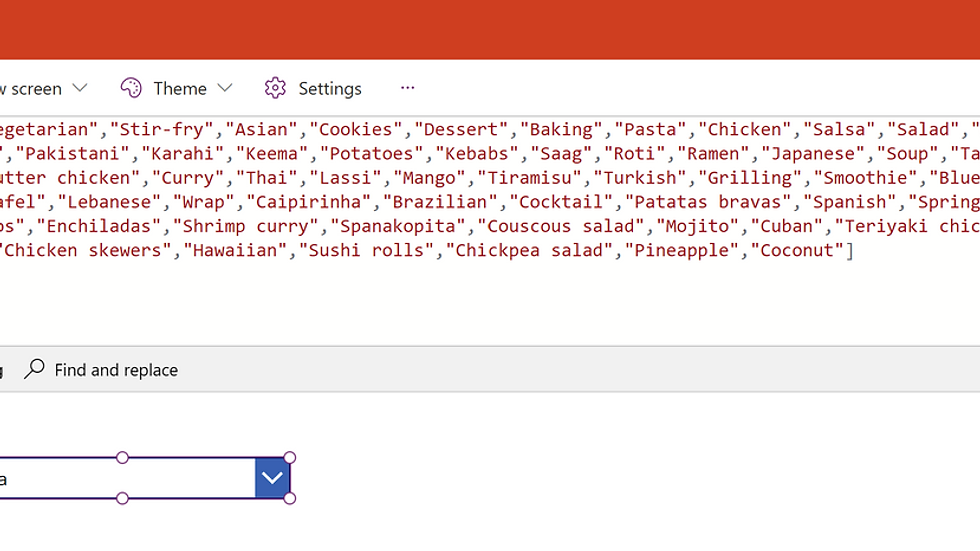
To let users pick a value instead of typing one, use the API itself to populate a Power Apps Dropdown. Dummy JSON exposes an endpoint that returns the full list of available recipe tags as a JSON array. Open that URL in a browser, copy the array including the square brackets, and paste it directly into the Items property of a Dropdown control. Power Apps interprets a square-bracketed list as a one-column table named Value automatically.
Then update the button OnSelect to pass the dropdown selection to the flow:
The result is a fully dynamic, user-driven API call: the user picks a tag, the flow builds the URL, and the gallery refreshes with matching recipes.
Common Power Apps API Mistakes to Avoid
Case sensitivity: JSON field names must match exactly. The field "name" is not the same as "Name."
Untyped data in strict controls: always wrap values with Text(), Value(), Boolean(), or Table() before binding to controls that require a known type.
Image controls: always wrap the source URL in Text(). The Image control will not infer the type from untyped data.
Nested arrays: wrap with Table() and use Concat() to display them as text in a label.
Premium licensing: the HTTP connector requires premium licensing for every user of the app. Plan licensing before building.
Question marks in URLs: one ? per URL, maximum. Every parameter after the first must use &.
Frequently Asked Questions
Can Power Apps Call a REST API Directly?
No. Power Apps cannot call external REST APIs directly. The supported pattern is to build a Power Automate flow that uses the HTTP action to call the API, then return the response to Power Apps using the "Respond to a Power App or flow" action. Custom connectors are an alternative, but they also require premium licensing.
Do You Need a Premium License to Call an API from Power Apps?
Yes. The HTTP action in Power Automate and custom connectors are both premium connectors. Every user who runs an app that calls an external API requires a premium Power Apps or premium Power Automate license.
What Does the ParseJSON Function Return in Power Apps?
ParseJSON returns an untyped object that can be navigated using dot notation. The function does not assign data types to the values it returns, so each value must be wrapped in a type function like Text(), Value(), Boolean(), DateValue(), or Table() before being used in a control or formula that requires a specific type.
Why Does My Image Control Show an Error When I Bind It to ParseJSON Data?
The Image control does not infer types from untyped data the way a Label does. Wrapping the reference in Text() (for example, Text(ThisItem.Value.image)) forces the value to a string and resolves the error.
Conclusion
Calling an API from Power Apps comes down to a five-step pattern: build a Power Automate flow with the HTTP action, return the JSON to Power Apps, parse the JSON with ParseJSON, cast the values with type functions, and reshape the result into a typed collection for clean reuse. Once the pattern is in place, the same approach works for almost every public or internal REST API.
The next two topics worth learning are authentication (API keys, OAuth, and bearer tokens) and writing data back to APIs using POST requests. Both build directly on the foundation in this tutorial.
Need a Hand?
If you want help building solutions like this or you want to take your Power Platform skills to the next level, the team at PowerApps911 has your back. We offer everything from quick 30-minute consulting sessions to long-term partnerships building enterprise apps. Click the Contact button on this page to start a conversation.



Comments