Search Content
Search this site
196 results found with an empty search
- Take a Deeper Look at Copilot for Power Automate
The Copilots are coming, and they're coming in hot! Microsoft has already rolled out 155 Copilots and counting. While becoming an expert in all of them might be a stretch, it's high time you picked a few to master. And what better place to start than with Copilot for Power Automate? The Art of Speaking Copilot's "Love Language" Remember those awkward first conversations you had when making new friends? Well, talking to Copilot is a bit like that. You're going to stumble, you're going to fumble, but hey, that's how you learn! Just like you wouldn't become a concert pianist overnight, you've got to put in your 10,000 hours to become a Copilot whisperer. The sooner you start practicing, the quicker you'll get to expert status. Just like you wouldn't ask your dog to make you a cup of coffee, you've got to know what Copilot is capable of. For instance, if you're working in Power Automate and you need to send an email, you could simply ask Copilot, "Hey, send an email using the Outlook connector." But if you get more specific, like "Send an email using the Outlook connector to this email address with this subject line and body," you're going to get much better results. The more specific you are, the more Copilot can do for you. It's like learning the specific coffee order of a new friend; the more details you know, the better the coffee run will be! Know What to Ask and How to Ask It Understanding Copilot's capabilities is crucial. Asking Copilot for Power Automate to help you groom your dog? That's a no-go. But asking it to write a flow expression for working with dates? Now you're talking! The key is to be as specific as possible. The more details you provide, the better Copilot can assist you. Below are some of the specific examples of what you can ask Creating a Cloud Flow Creating a cloud flow with Copilot is like having an extra team member. You start with a trigger, and from there, Copilot can help you add actions, conditions, and even loops. It's all about asking the right questions and letting Copilot guide you. Updating Your Flow to Incorporate Dynamic Content Dynamic content can make your flows more versatile and powerful. Copilot can assist you in incorporating dynamic content into your action's properties, making your flows more adaptable to various scenarios. Writing a Flow Expression Using Functions and Logic Flow expressions can be tricky, but not with Copilot by your side. Whether you're working with dates, strings, or numbers, Copilot can help you write the perfect expression. Just be specific in your request, and you'll get the results you're looking for. Adding Actions to Build on Your Flow The beauty of Copilot is that it can help you build your flow step-by-step. Do you need to send an email after a condition is met? Just ask Copilot to add that action for you. It's all about having a conversation and building your flow together. Describe Your Flow One of the coolest features of Copilot is its ability to describe your existing flows. If you're trying to understand a complex flow built by a coworker, Copilot can analyze it and give you a rundown of what it does. It's like having your own personal flow interpreter. For a more in-depth look at any of these examples don't miss our newest video Copilot for Power Automate where you can get a step-by-step walk through of all of them. Time to Practice! Now that you've got the lowdown, it's time to practice. Start building flows using Copilot's "love language," and you'll be a pro in no time. Need a Boost? If you're looking to fast-track your Copilot journey, we've got you covered. At PowerApps911, we offer mentoring and consulting services tailored to your needs. We even have a Copilot for Office 365 training class in the works. Interested? Scroll down and fill out the contact form, selecting "Copilot" as your area of interest.
- Mastering Deep Linking in Power Apps: A Step-by-Step Guide
Hey there, Power Apps enthusiasts! Ever found yourself wishing you could send someone a direct link to a specific record in your Power Apps application? Well, today is your lucky day. In this blog post, you're going to learn the ins and outs of setting up deep linking in Power Apps, specifically with Dataverse. By the end of this read, you'll be a deep linking wizard. 🧙♂️ What is Deep Linking in Power Apps? Deep linking in Power Apps is a technique that allows you to create URLs that point directly to a specific, generally "deep" location within your app. Instead of sending someone to the home screen, you can send them straight to the information they need. It's like having a VIP pass to the best parts of your app! While we will demo sending deep links via an Outlook email reminder once you understand how to create the URL, you can distribute them any way you want. Via Teams, Power BI, Power Automate, even embedded in a SharePoint List Why Dataverse? Dataverse is a powerful data service provided by Microsoft that integrates seamlessly with Power Apps. It offers robust capabilities, including the ability to create primary keys for your records, which is crucial for deep linking. Does it work with SharePoint or SQL? Yes, this works for any of your tabular data sources including SharePoint Online and Azure SQL Server for example. The key is your data source needs a primary key that you can reference and then you need to Lookup that record. I only used Dataverse because it is the easiest data source for me to make the app and tables downloadable via out Training subscriptions. Let's Get Started Step 1: Identify the Primary Key in Dataverse The first thing you need to do is identify the primary key in your Dataverse table. This unique identifier is what you'll use to create your deep link. To find it, go to your Dataverse table and look for the column labeled as the "unique identifier." Step 2: Craft Your URL Once you have your primary key, you can start crafting your URL. The URL will look something like this: https://apps.powerapps.com/play/YOUR_APP_ID?tenantId=YOUR_TENANT_ID&empID=PRIMARY_KEY Replace `YOUR_APP_ID`, `YOUR_TENANT_ID`, and `PRIMARY_KEY` with your specific details. Remember to get everything before &empID=PRIMARY_KEY you can go to Power Apps, click Apps, find your app and then click Details. You want the Web link. Step 3: Use the OnStart Property In your Power Apps app, go to the `App` object and find the `OnStart` property. Here, you'll set a variable to capture the primary key from the URL using the `Param` function. PowerApps Set(varEmpID, Param("empID")) Step 4: Navigate to the Record Now, you'll use the `Navigate` function to go to the specific screen where the record is displayed. You'll use the `Lookup` function to find the record that matches the primary key. PowerApps Navigate(EditScreen, Lookup(YourTable, PrimaryKeyColumn = varEmpID)) Replace `EditScreen`, `YourTable`, and `PrimaryKeyColumn` with your specific details. Step 5: Test It Out The last step is to test your deep link. Send the URL via email, click on it, and you should be taken directly to the specific record in your Power Apps app. Watch the Video Tutorial For a more detailed walkthrough, including some pro tips and tricks, check out this video tutorial: Master Power Apps Deep Linking with Dataverse Need Help? Setting up deep linking can be a bit tricky, but the benefits are huge. If you find yourself stuck or just want to take your Power Apps skills to the next level, PowerApps911 is here to help. Just scroll down the page and tell us how we can help you via the Contact form. If you prefer to learn on your own, there is a downloadable app included with this video in our YouTube training library for only $15/month!
- The Ultimate Guide to Patching Dataverse Columns in Power Apps
Hey there, Power App enthusiasts! If you've ever found yourself puzzled over patching Dataverse columns, we've got your back. We've created a comprehensive video guide Patch Dataverse Columns with Power Apps that dives deep into patching various Dataverse column types. But if you're more of a reader, this blog post is your go-to resource! Dataverse Text Columns: More Than Just Words Dataverse Text and Dataverse Multi-Line columns are the backbone of most databases. While they offer various display options, at their core, they're all about storing text. Single Lines of Text have a character limit of 4000, while Multiple Lines can store just over a million characters. In Power Apps, patching these types of columns is a breeze. Here's a quick example: Patch('YourTable', Defaults('YourTable'), {Title: "Hello, World!"}) Dataverse Number and Currency Columns: The Numbers Game When it comes to Dataverse Number and Currency columns, precision is key. Number columns can store integers or decimals, while Currency columns are formatted to handle monetary values. Patching these columns in Power Apps is straightforward: Patch('YourTable', Defaults('YourTable'), {Price: 19.99}) Dataverse Date and Time Columns: Tick Tock Dataverse Date and Time columns are perfect for scheduling, logging, and more. Power Apps offers built-in functions like `Today()` and `Now()` to make patching these columns a walk in the park. Patch('YourTable', Defaults('YourTable'), {MeetingDate: Today()}) Dataverse Choice and Yes/No Columns: The Decision Makers Choice columns in Dataverse are ideal for fields with a predefined set of options, like 'Status' or 'Priority'. Yes/No columns simplify it even further, boiling it down to a binary choice. Here's how to patch them: Patch('YourTable', Defaults('YourTable'), {Status: {Value: "Completed"}}) Dataverse Lookup Columns: The Relationship Builders Dataverse Lookup columns are all about creating relationships between tables. They're essential for maintaining data integrity and making your apps more dynamic. To patch these columns, you'll need to provide a record, like so: Patch('YourTable', Defaults('YourTable'), {Customer: LookUp('CustomersTable', ID = 1)}) Dataverse File and Image Columns: Worth a Thousand Words Dataverse File and Image columns allow you to store a variety of media. While File columns can handle documents like PDFs and Excel sheets, Image columns are optimized for image files. Here's how to patch them: Patch('YourTable', Defaults('YourTable'), {Document: AddMediaButton1.Media}) Wrapping Up Patching Power Apps Dataverse Columns That was a lot to take in, but with a bit of practice, you'll be patching Dataverse columns like a pro. If you're more of a visual learner, make sure to check out our video guide. Still feeling stuck? No worries! At PowerApps911, we offer specialized training and consulting to help you master Power Apps. Reach out to us for personalized guidance and expert solutions. Just scroll down the page and fill out the contact form. 🙂 If you prefer to learn on your own, there is a downloadable app included with this video in our YouTube training library for only $15/month!
- How To Filter a Gallery by Drop-down by Using PowerApps
At PowerApps911 we have frequently been asked the question, how do I filter a gallery? In this post, we're going to make it easy for you. We will take a look at how to filter a gallery by drop-down and how to add an ‘All’ filter or blank row, using Power Apps. We include a step-by-step guide to help you create not only one but two drop-down filters, as well as a ‘Search’ function. By using the example of a company's list of employees in each department, you will be able to create: Distinct Filter The ‘Distinct’ filter lists employees by different Departments within the company. For example, all the staff in Accounting are listed together under the ‘Accounting’ drop-down. Distinct Filter Plus All This filter lists all employees no matter what Department or job they may have, with a drop-down menu with the option to click on the different Departments. The list defaults to ‘All’. Here you will learn how to use collection and dynamically add the ‘All’ record. Two Drop-downs This filter allows a second drop-down of information about the employees. The example we have used is ‘Favorite Color’. For example, if you only want to see ‘Finance’ employees whose ‘Favorite Color’ is red. Side note: We do this with ‘If’ formulas and other techniques. Two Drop-downs Plus Search This will allow ‘Search’ functionality by first and last name. Your Step-by-step Guide to Filtering a Gallery by Drop-down This tutorial aims to help you get the hang of PowerApps' capabilities with regards to creating filtering by drop-downs. By using our demo app, we can explain how to do the drop-down filters. The demo app includes the four filter buttons: Distinct Filter, Distinct Filter Plus All, Two Drop-downs, and Two Drop-downs Plus Search. Let's Get Started Firstly, start a new screen by clicking ‘New Screen’ at the top left and click ‘Insert’ then ‘Gallery’ and choose your employees as ‘DataSource’. Type in the three fields we will be using in the example: fx:ThisItem.’First Name’ fx:ThisItem.’Deparment’ fx:ThisItem.’Favorite Color’.Value Our data source is SharePoint and, here, ‘Favorite Color’ is a complex column and needs .Value typed in. But just know that your data source isn't dependent on SharePoint. Distinct Filter To add your filter, click ‘Input’ then ‘Drop-down’. In Properties use ‘Department’ to show all the Department data. When adding the item's property for your gallery you're going to do a filter. So, for example, if you want to run a filter of employees by Department. Type in: fx:Filter(Employees, Department = Dropdown1.Selected.Result) The downside here is that you may have a department listed twice. If you have a department listed twice, you will use a function called ‘Distinct’. Type in: fx:Distinct(Employees, Department) It will take all employees from the table and then everything should recompile. The ‘Distinct’ function doesn't return the whole record; it just returns a special column named ‘Results’, which, in this example, has the value of ‘Department’. Take note: The ‘Distinct’ function is not delegable. (Not familiar with this concept? We have a video on PowerApps Delegation, click here to find out more.) This means the data source can't do the work for us - finding all the ‘Distinct’ values - so by default PowerApps works with the first 500 records from the data source and then looks for the ‘Distinct’ values in there. So the ‘Distinct’ function wouldn't work very well on a large list. But you do have a lot of flexibility to hard code if necessary. Your drop-down doesn't have to use ‘Distinct’. Another note: If you had a separate data source with a list of valid Departments you could feed that information in because our filter function matches text. So it doesn't have to be a table. Distinct Filter Plus All When you want to add an ‘All’ function to see all the records, an easy way to do this is to build a collection. The way to do this is by clicking ‘Screens’ and then ‘OnVisible’. By typing ‘ClearCollect you build a fresh collection. Call the collection ‘CollectVideo’; it's where you will store the ‘Distinct’ employees's Departments. Type in: Fx:ClearCollect(collectVideo, Distinct(Employees, Department)) This is the first step in the puzzle; the ability to give us all the records in a collection. In order to wipe out the collection and then load the first record as ‘All’. Type in this fx formula above the previous one: Fx:ClearCollect(collectVideo, (Result: “All”}); Now you will see that ‘All’ as well as all the ‘Departments’ are listed - like you have had every other time. Although the drop-down ‘All’ is showing nothing at the moment. To make the ‘All’ function work, you must do an ‘If’ formula. Type in: Fx:If(Dropdown1.Selected.Result = “All”, Employees, Filter(Employees, Department = Dropdown1.Selected.Result)) 6. So if All isn't chosen, it was another ‘Department’ that was chosen. You would then filter the ‘Results’ by what was chosen. The ‘If’ formula allows us to go that extra step. Side note: Instead of using the word ‘All’ you can use dashes or leave it blank. And, you can set the default in Screens for your drop-down to ‘All’. Two Drop-Downs What you need to do to filter off of two is to add a second drop-down first - by clicking Input, Drop-down. Type in: Fx:Distinct(Employees, ‘Favorite Color’.Value) You will then add a filter on the ‘Favorite Color’ value. You'll see all the colors listed in the drop-down. Do this in the drop-down first to make sure that's the right way, and you can see what you want - because, remember, this is a complex SharePoint column that uses .Value. Next, go back to ‘OnVisible’ to make a new ‘Collection’ and paste in the formula that returns the correct data. Type in: Fx:Collect(collectVideo, Distinct(Employees, Department)); Fx:ClearCollect(collecVideoColors, {Result: “All}); Fx:Collect(collectVideoColors, Distinct(Employees, ‘Favorite Color’.Value)) Leave and return to the Screen and change ‘Distinct’ to ‘CollectVideoColors’. Now things get fancy. Instead of having a simple ‘If’ scenario you will need four different scenarios for the two drop-downs. The ‘If’ formulas aren't as simple here. First scenario: Fx:If(ddDepartment.Selected.Result = “All” And ddColor.Selected.Result = “All”, Employees, So, if both of these are true, then you want to show the entire employees list. And you can see if it works. Second scenario: ddDepartments.Selected.Result = “All” And ddColor.Selected.Result <> “All”, Filter (Employees, ‘Favorite Color’.Value = ddColor.Selected.Result.), We use the symbol <> here for ‘does not equal’. Now you will see that 'All and All' work, and 'All and a color' work. Third scenario: ddDepartment.Selected.Result <> “All” And ddColor.Selected.Result = “All”, Filter(Employees, Department = ddDepartment.Selected.Result), Now this is the reverse of the second scenario. So you copy the formula and change it by adding 'not equal to All' and 'is equal to All' and filter employees by department. Fourth scenario: ddDepartment.Selected.Result <> “All” And ddColor.Selected.Result <> “All”, Filter(Employees, Department = ddDeparment.Selected.Result And ‘Favorite Color’.Value = ddColor.Selected.Result) For the final one, you paste in the formula and change 'not equal to All' and 'is not equal to All'. Filter employees by Favorite Color. Tip: Add comments above the code to show what is for 'All and All', 'All Departments and Selected Color', 'Selected Department and All Colors', 'Selected Departments and the selected color'. This will make things easier for you. Another Tip: Build your system in the same exact order, in baby steps. Get one step to work and then move to the next and the next, and so on. This way, you won't have to go back very far if you need to fix something. Two Drop-Downs Plus Search If you want the ability to search, you need to ‘Insert’ a ‘Text Input’. In Properties, change the ‘Default Value’ to be nothing and the ‘HintText’ to be ‘Search First and Last Name’. You can add a little search icon or grey text, whatever you want. ‘Search’ requires a table of data, and the function you have just built returns a table of data. So at the top of your table of data type in: fx:Search( And then add the text you want to ‘Search’ at the end of your table - remember to end your table of data with a closed bracket and comma. Then type in: fx:TextInput2.Text, “FirstName”, “LastName”) 4. ‘Search’ only works with text columns. And you can still use your refiners within the ‘Search’ list. Tip: For large data sources, find a way to refine your data before you run into problems. For example, instead of searching for all purchase orders in a big company, rather get into a filtered subset before applying refiners. Why Use PowerApps? If you're looking for an app that lets you build seamless and professional applications for your business, PowerApps is your best bet. PowerApps can help you easily streamlines processes and can solve challenges your organization may be facing. Plus, PowerApps lets you customize and optimize every detail of your app for specific tasks and roles. Whatever your requirements, PowerApps let you build all the business applications you need. Whether you need assistance with an issue or complete project services, PowerApps is here to help. To watch the full video tutorial on how to How To Filter a Gallery by Drop-down by Using PowerApps, click here.
- How To Use Power Apps to Upload a File
In this tutorial, we learn how to use PowerApps to upload a file directly to a SharePoint document library. No complicated code, but instead a simple and straightforward way to save all files into SharePoint. So how did we get here? After trying to figure it out for about a year and a half, we have come up with a pretty straightforward solution. Sure, other people have figured out ways to do this, but we’ve never quite taken to any of these methods––which have been very complicated using complex Power Automate actions and parsing through code. So, today we’re going to show you what we have finally solved, thanks to someone else on Twitter named Romero. (Click here for the link to Romero’s solution). Romero’s method was great and involved uploading lots of files. In particular, he shared one little step that we had never thought of. That one step was the catalyst for this super simplified solution. Thank you to Romero for sharing! This is what our community is all about. People post content, and then others can build on it. Hopefully, you can do the same with this tutorial and do even better things after reading or watching it. Steps to Upload a File To illustrate how we engineered this solution, we’ll show you how to build it from scratch. This way, you can see the mechanics behind it, what the UI looks like, and how to handle the file links. First up, start with a brand new canvas app and grab the Attachment Control from a form. If you need to find out how to do this, we created a video tutorial on that too. To watch that tutorial, click here. The main reason why we do this is that when you hit ‘Play’ and then click on ‘Attach a File’ you are able to select from ‘All Files.’ Instead of using the default control we have used for years, where you would click on ‘Insert’, ‘Media’, and the ‘Add Picture’ for example. However, the downside of that control is that it defaults to all image files, and then you need to change it. Now, instead, we are going to select the ‘Media’ Control and then select, ‘Image.’ (This ‘Image Control’ was in fact, the missing step that we needed to complete the solution!) Next, we’ll select ‘Attach File’ and select a small image file to start off. Select ‘Open,’ and you’ll see it’s been added. Now we can select the image control and for the Image property in the formula bar we will put the following code: Last(AttachmentControl.Attachments).Value. Here, our attachment control is named AttachmentControl. Make sure you are referencing the correct control. The attachment control stores files in a local blob storage, but by passing it through the image control, we can extract the file content, allowing us to save the files directly to SharePoint. You can see this demonstrated by inserting a button and setting the OnSelect property to Set(varDemoFromAttachmentControl, JSON(Image1.Image, IncludeBinaryData)) and then insert a label and set the text property to varDemoFromAttachmentControl. Now we can attach another file, such as an Excel file. Once you hit ‘Open’, you’ll see that it recognizes everything within the file content including the type of file and the base64 code. We only need the encoded portion. (Basically everything after the base64 and following comma). So, let's fix it up a bit. For now we will change the formula in separate steps. In the button setting your variables, add: Set(varBase64Only, Mid (varDemoFromAttachmentControl Find (“,”, varDemoFromAttachmentControl)+1 )). Remember to separate commands with a semicolon. Press the button while holding the Alt key and create another label and in the formula tab write varBase64Only for the Text property. Turn on scrolling for the label. We have now stripped out everything before the actual file. We still haven’t completely isolated the file content. JSON adds quotation marks at the end. To fix this, go back to your button’s OnSelect property and change the formula to set varBase64Only to the following: Set (varBase64Only, Mid (varDemoFromAttachmentControl, Find (“,”, VarDemoFromAttachmentControl)+1, Len (varDemoFromAttachmentControl)-Find (“,”, varDemoFromAttachmentControl)-2)). Then if you look at each label you’ll see they end with AAAAA at the end. If we add a PDF, you’ll see that the label text starts and ends with the same text. It’s important to write this formula in a way that it can handle different file types. Getting the Data into SharePoint Now that we know how to get the file content out, we need to get it into SharePoint. To do this, we are going to write the world’s simplest flow: Step 1: Visit Power Automate, click on ‘Create,’ ‘then select ‘Instant cloud flow’ and name it. We’re calling ours ‘Easy Upload.’ Select PowerApps and click ‘Create.’ Step 2: Now, we will add a new step and search for SharePoint, and in the Sharepoint Connector, you’ll see ‘Create File.’ Now you’ll need to enter the Site Address. We want to create it in my PowerApps Video Sites, but choose whichever site you would like for your solution. For Folder Path select Shared Documents, Files from PowerApps (we created this), File Name: open the dynamic content and select Ask Powerapps for the name, and for File Content Ask Powerapps too. If you don’t see the Ask in PowerApps, search for it in the dynamic content. Take note: SharePoint does not store base64 files but rather in binary for some reason. So let’s delete the File Content for now. For the File Content, open up the dynamic content dialogue box and type base64ToBinary(), then place your cursor between the parentheses, switch to the Dynamic Content tab, and select the Createfile_FileContent.This is going to take that long string and encode it once again. All you have to do is give it the string that you want to give it and the file contents that we’re sending over. That’s it. Step 3: Hit “Next Step” underneath ‘Choose an Action’ search for PowerApps and select: Respond to a PowerApps or Flow, Add an Output, Add a Text Output, and call it SharePoint File Link. Where it says: Enter a Value to Respond paste your Sharepoint URL and get rid of that last ‘\,’. You’ll see under the ‘Dynamic Content’ tab, you can select ‘Path.’ This will automatically grab the path of the file we created. Hit ‘Save’. Now we go back over to PowerApps and Insert another Button. Once we select this Button we are going to select ‘Action’ and then ‘Flows.’ You’ll find the Easy Upload to select, which will put the code EasyUpload.Run() in the OnSelect property of your button. A small note, if you have any code in the OnSelect property in your button, adding a flow will erase it, so copy that code elsewhere first. Replace the formula with: EasyUpload.Run(Last(AttachmentControl.Attachments).Name, varBase64Only). Now add: Set(varFileLink, at the beginning and .sharepointfilelink) at the end. Click on the Button (by holding Alt or putting your app in Preview Mode), and if we refresh files uploaded from Powerapps, you’ll see your uploaded PDF. To test your URL, insert another Button and in the formula bar for the OnSelect property type: Launch(varFileLink), hit Preview or hold down Alt and click on your new Button; it launches it straight into the file. Simplifying the Attachment Control Now we can simplify our actual Attachment Control to make it look cleaner. Once you’ve selected it, in the properties drop-down, you’ll see something called ‘OnAddFile.’ Now, we will grab both Button’s OnSelect code and copy it because it does everything we want. Ensure that you separate the code with a semicolon and add the initial button’s code first with the flow running second. Then we will paste this into our ‘OnAddFile’. We will go to the end of the formula and reset the attachment control by adding: Reset (AttachmentControl). The final result will look like this: Set(varDemoFromAttachmentControl, JSON(Image1.Image, JSONFormat.IncludeBinaryData)); Set(varBase64Only, Mid(varDemoFromAttachmentControl, Find(",", varDemoFromAttachmentControl)+1, Len(varDemoFromAttachmentControl) - Find(",", varDemoFromAttachmentControl)-1)); Set(varFileLink, EasyUpload.Run(Last(AttachmentControl.Attachments).Name, varBase64Only).sharepointfilelink); Reset(AttachmentControl) Now we can delete both buttons and the label so that we are only left with our attachment control. If we attach a file and upload a Word Doc, it will reset and you will see the file within a few seconds. Now we can clean our attachment control up even more. So, you can make your fill transparent, change the color to transparent, and set the border color to transparent. Then, set a hover border color to black so that when you hover over it with the mouse, you can see it. Then we inserted the ‘+’ icon over the top of it and resized it. Then we right-click on the ‘+’ icon and ‘send it to the back.’ This means that it is behind the Attachment Control. But as the Attachment Control is transparent so we can’t see it. Take Note: Remember the image control needs to stay there, so don’t delete it. You can set the visible property to “False,” make it really small, and send it to the corner. So, there you go! Take this tutorial as guidance and come up with different ways and have fun with it. We encourage you to do more with it and expand on the concept. To watch the full video tutorial on how to use PowerApps to upload a file, click here. Build Your Own App with PowerApps Power Apps provides a rapid application development environment to build a wide range of custom apps. Whether you need assistance with an issue or complete project services, contact PowerApps today.
- Power Apps Forms – Form Mode
Microsoft Power Apps forms are a way to edit and enter new data easily, but sometimes the nuances of form mode can be difficult to navigate. This tutorial provides an in-depth breakdown of data manipulation in Microsoft Power Apps using forms. By taking a closer look at the subtle nuances of this key utility, users will learn to expand the functionality of their applications and improve user experience. Power App’s forms provide valuable solutions for business owners, operations managers, team leads, and others. Follow along with the video to see examples in action. How to Set Power Apps Form Mode The primary purpose of a form is to give and receive data to a source. The real benefit of forms is the ability to choose the exact fields you wish to view or edit and have all of the appropriate labels and input controls generated for you with little effort. The form mode tells the form how to communicate with the datasource. Do you wish to view a record, edit an existing record, or create a whole new one? Change the Form’s Default Values The form’s default values provide granular control over the form by setting the form mode without specifying it elsewhere. In other words, the form will default to this mode unless otherwise commanded. To change the default form mode, follow these steps: With the form selected, select “DefaultMode” in the properties dropdown on the top left. To select the whole form, you may need to use the tree view on the far left panel. The command bar should read FormMode.Edit. Adjust the “FormMode” function to change the value. Delete the “Edit” line from the command bar and Power Apps will display a selection to choose from. These include “Edit”, “New”, and “View”. Set the default form mode according to your desired default. Now the form cannot be altered unless the form mode is changed. Add a Button to Edit Forms Setting the default form mode is a good start, but users still need a way to easily change the form mode from the default setting. To do this, insert a button and name it “Edit”. Now try clicking it. The button won’t do anything yet. In the command bar for the OnSelect property, type EditForm(Form1) with “Form1” as the name of the form. Select the button to expose the form properties for editing. This is a simple way to switch modes in Power Apps forms on the fly. Add a Button to Cancel Editing Create another button and change the text to Cancel. Type ViewForm(Form1) into the command bar for the OnSelect property. With the form mode in edit, select the new button. Remember that you can hold down the Alt key or put the app in play mode to mimic a user role. The mode will now switch back to view mode. Users can now easily toggle through the two modes. Hide or Show Cancel Button With the cancel button still selected, find the Visible property in the dropdown and type Form1.Mode = FormMode.Edit into the command bar. This will force the cancel button to show only when the form is in edit mode. You may be tempted to write an If statement here, but remember that this is unnecessary for expressions in which the desired outcome is true or false. Add a Button to Create New Item Create another button and name it “New.” With the button selected, type NewForm(Form1) into the command bar for the OnSelect property. Click the button to create a new form. This works fine, but the cancel button still isn’t displayed. This is because our Visible logic for the cancel button is looking to see if form mode is edit, and right now the form mode is new. Go back to the Visible property for the Cancel button. You have two options to set the logic here. The first is to show the button if the form mode is not view. For this, type into the formula bar!(Form1.Mode = FormMode.View). Note that the exclamation point means Not and results in the opposite of the condition specified. The second option is to point to the display mode for the form. Although their are 3 form modes, there are only 2 display modes, view and edit. This can be confusing, but consider how in both edit and new form the inputs are allowed to be set or changed; in view they are not. The logic for this formula would be Form1.DisplayMode = DisplayMode.Edit. Add a Button to Save Forms Create one more button. Name it “Submit or Save” and type SubmitForm(Form1) into the command bar for the OnSelect property. This will allow users to create, edit, and save new forms in individual clicks. Learn More about Power Apps Form Mode with PowerApps911 Conditional formatting with Power Apps forms can be difficult to understand, but when used correctly, these building blocks can provide numerous solutions for data manipulation and storage. Check out our expert courses and lessons for more step-by-step guides!
- Learn to use the PowerApps Filter Function
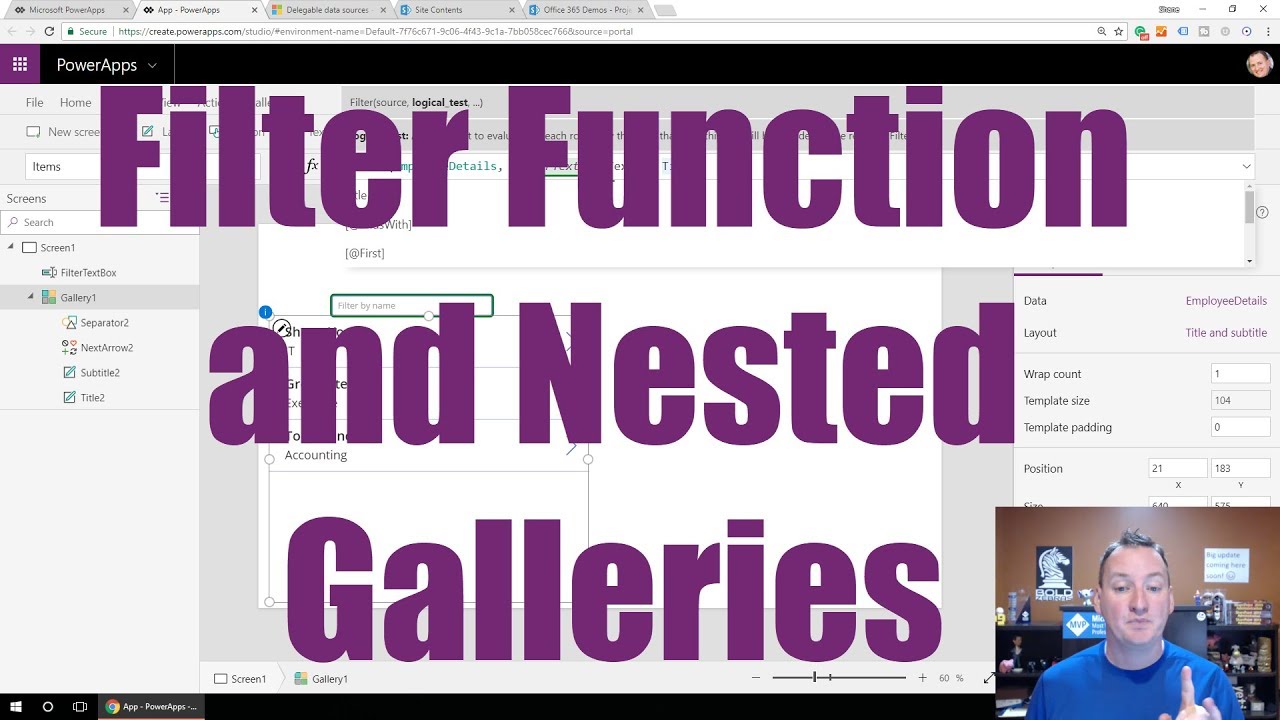
The PowerApps filter function allows you to build and implement a search box capable of dynamic data filtration. Using PowerApps, you can filter through data tables and look for specific records that satisfy a set criteria. Use this guide to learn the nuances of the PowerApps Filter and build a custom PowerApps Gallery - or follow along with Shane! Creating a Basic Gallery Layout Begin by clicking ‘Apps’ in the left pane and then ‘Create an App’ at the top left of the new window. You should be looking at a new window. Select the blank tablet layout at the bottom of the list. You will see a window asking you to go through a tutorial. Feel free to skip it at this point. To generate data in the gallery, first click ‘Gallery’ in the top ribbon and then select a data source from the available list. The data will populate the new gallery. Change the layout to ‘Title and subtitle’ and select ‘Title’ in the dropdown menu for ‘Title2.’ You should now have a simple gallery layout. Building Your First Filter function To use the PowerApps filter function: Click on ‘Text’ in the top ribbon and then select ‘Text input’ from the dropdown menu. Move the new text box to your desired location. Remove the default text from the command input at the top. Change the type in the box to the left from ‘Default’ to ‘HintText.’ This will allow you to input a hint into the text box to help the user understand the expected input. Rename the box ‘FilterTextBox.’ Make sure you have your gallery selected in the left pane. The screen should currently be populated by ‘EmployeeDetails.’ Highlight the text in the command bar at the top and change it to ‘Filter(EmployeeDetails, FilterTextbox.Text = Title).’ Now, try typing a name from the data source. It should bring up the expected title for the name. Using Operators in Your Functions Try changing the ‘=’ in the function to ‘in’ so you have ‘Filter(EmployeeDetails, FilterTextbox.Text in Title).’ Now, the name will show up dynamically so long as the text being typed still matches the title. Next, change the function to ‘Filter(EmployeeDetails, StartsWith(Title, FilterTextBox.Text)).’ With this filter function, the names all show up at the start and are then filtered out as you type your selection. There are many operators you can use to give you an enhanced experience. Understanding How the Operators Work The operator is an essential component that makes PowerApps filters work. This comes with a downside, though. If you look at the ‘in’ that was added to the function, it will have a small warning line beneath it. This indicates that the data will have to be processed on the client’s side. This can be a big deal if large amounts of information are being processed and the local computer cannot handle the load. Filters allow you to delegate the processing of data between the server and host machine. You have to be specific about which operators are used in the function so that you have a grasp of where the data is being processed. Microsoft documents each operator and how it works on the PowerApps website. Appending Logical Text in Filter Functions You can append the function with more logical text. Change the filter to ‘Filter(EmployeeDetails, StartsWith(Title, FilterTextBox.Text).FavoriteColor = “Red”).’ This filter will show only those with the color “Red” set as their favorite color in the database. The logical text allows you to use multiple conditions to filter your data with the PowerApps filter function. This is an important concept for building effective applications. By utilizing filter functions, you can create apps that easily guide users through large amounts of data. Filtering Through the Imported Data To create a look-up column to find specific data points type ‘Filter(EmployeeDetails, FilterTextbox.Text = Look.Value)’ into the function box. This will work, but you will see that there are a few flags highlighted in the function. A cleaner approach would be to look up more specific values with ‘Filter(EmployeeDetails, FilterTextbox.Text = Title).’ This is more specific and allows you to import your data more efficiently. Creating Nested Galleries with Filter Functions Nested galleries are an effective way to control your data input on the fly: Create a new screen with a vertical gallery and import your data source. Once it connects, change your layout to ‘Title and subtitle’ and select ‘Title’ below that. Your gallery should be populated by the data that was imported. Select another vertical gallery from the top ribbon and add another data source associated with the first by typing ‘Filter(ProjectTasks, Project = Gallery2.Selected.ProjectName).’ You can nest your galleries to be sequentially generated once the user has selected an option. This will let you dig deeper into the data by providing branches to the application, allowing you to create more complex applications. Learning the Mechanics of Filter Functions Learning to use the PowerApps filter function will help you understand the basic mechanics of data processing. Understanding delegation and the use of operators is essential for effectively managing large batches of information. This is why the filter function is such an important part of PowerApps. Read more about PowerApps and the available functions, or consider joining our Training Programs for professional insight, assistance, and courses designed to make you a PowerApps Master.
- PowerApps Cascading Dropdown
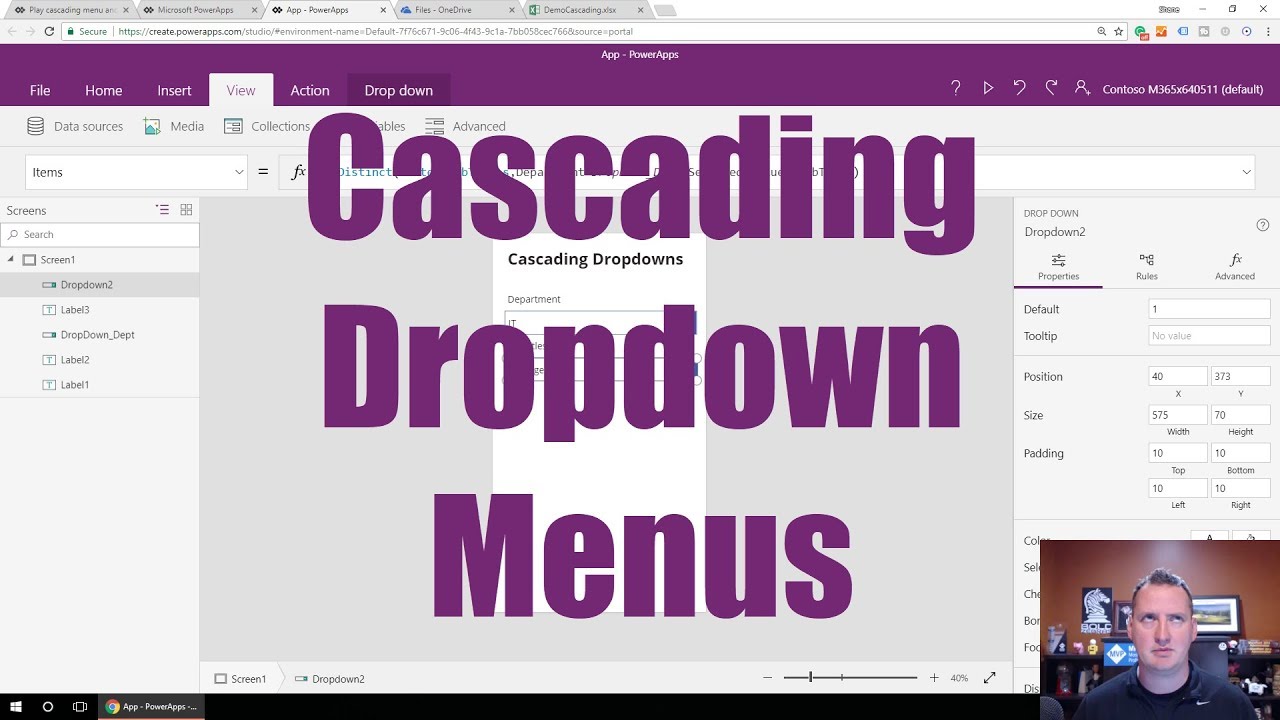
PowerApps cascading dropdown menus will allow you to make great apps for your users. These can be difficult to set up for the first time, but using this feature makes dynamic filtering of menus through selection more accessible to users. By taking the time to create these menus, your titles will always correspond to one another. We will make a simple application by pulling data out of an excel workbook to demonstrate the mechanics of cascading dropdowns. After working through these steps, you can apply them to your own data sets. Want to follow along with our video? Watch as Shane guides us through Cascading Dropdowns in PowerApps: Create a New Empty Application Begin by signing into PowerApps. After the application loads, click on the ‘Apps’ button in the left pane. Click on ‘Create an App’ in the upper right. For now, just select a blank app with the phone layout. Give your new application a few seconds to load. You can skip the tutorial this time. Create Your Labels and Buttons You should now have an empty application with the selected layout. To create interactive labels with dropdown options: Create a Label: Choose ‘Label’ from the top ribbon. Type in a name for your application. For this tutorial, we will use “Cascading Dropdowns.” You can format the text, change its size or color, and bold, italicize, or underline. Create a Dropdown: Go ahead and add another label beneath the first one. Name it “Department.” Click ‘Controls’ in the top ribbon and select ‘Dropdown.’ Move your new dropdown beneath the label you just created. Rename the dropdown ‘DropDown_Dept.’ Create a Second Dropdown: Now, make another label and name it “Job Titles.” Create another dropdown and insert it beneath that label. Your application will display the newly created labels. You should be able to interact with them, but they will be empty. Add a New Data Source With these two pieces in place, we now need to create a data connection to populate the menus. Load up your data sheet and check it over. If you make the first values blank, no options will be selected by default. This will look better for the user because it displays empty text instead of the first items in the list. Populate Your Label With Data Click ‘View’ in the top ribbon followed by ‘Data sources.’ Now, click on ‘Add data source’ in the window that pops up. This will show a list of connections to import your data source from. Services including OneDrive, SharePoint, and Office 365 are available. Simply click the ‘New connection’ button to add a service provider to import your source from. After making your selection, you will be able to import the data and select the table that you would like to use. It is important to note that you have to have a table already created within your data source for this process to work correctly. Select the dropdown beneath the Department label that you previously created. Type ‘Distinct(JobTitles,Department)’ into the text box. Now, if you click on the preview you should see the department data populating the department box. However, you’ll notice that the information isn’t in alphabetical order. Change the text to ‘Sort(Distinct(JobTitles,Department),Result)’ and press the preview once again. Now, the departments should be alphabetized. Display the Job Titles Next, we want the application to display the job titles for the chosen department. Select the dropdown beneath the “Job Titles” label then type ‘Filter(JobTitles,Department=DropDown_Dept.Selected.Value)’ into the function box at the top. If you press the preview now, you will see that the job titles are populated based on which department is selected. However, the system only displays the department so far, not the positions themselves. Change the code to ‘Distinct(Filter(JobTitles,Department=DropDown_Dept.Selected.Value),JobTitle)’ and run the preview again. PowerApps should now show the individual job titles when the department is selected. Create Reset and Refresh Buttons We will now create a couple buttons to make it easier to import new data: Create a Reset Button: Select ‘Insert’ from the top ribbon. Then, choose the button from the available options. This will add a button to your project. Place it wherever you want it. Rename the button ‘Reset’ and type ‘Reset(DropDown_Dept);Reset(Dropdown2)’ into the top text bar. Create a Refresh Button: Click ‘Insert’ and select the ‘Icons’ option. Choose an icon to add next to the reset button. Now, type ‘Refresh(JobTitles)’ into the text at the top. These buttons are great for helping you work through any issues you might come across when importing and working with your data. They will allow you to reset the dropdown menus to their default settings any time. This is good for troubleshooting, but it can also be useful for end users. Edit the Dropdown Display Mode You might notice that you can click on the job titles before selecting a department. This presents no options, so it’s not a big deal, but to make the interface look cleaner we should add one last piece of code. Click the arrow next to the box that says ‘Items’ and scroll down to select ‘Display Mode’ from the available options. Type ‘If(DropDown_Dept.Selected.Value = “”,DisplayMode.Disabled, DisplayMode.Edit)’ into the box. Now, ‘Job Titles’ cannot be selected until you have chosen an option from the list of departments. Easily Access Your Data with Cascading Dropdowns You should now have your data dynamically loading in the cascading drop down menus. This feature allows you and your users to easily access the information. Find out more about how PowerApps can improve your development - join our Training Courses.
- PowerApps Forms - Introduction to Data Sources, Data Cards, and Layout
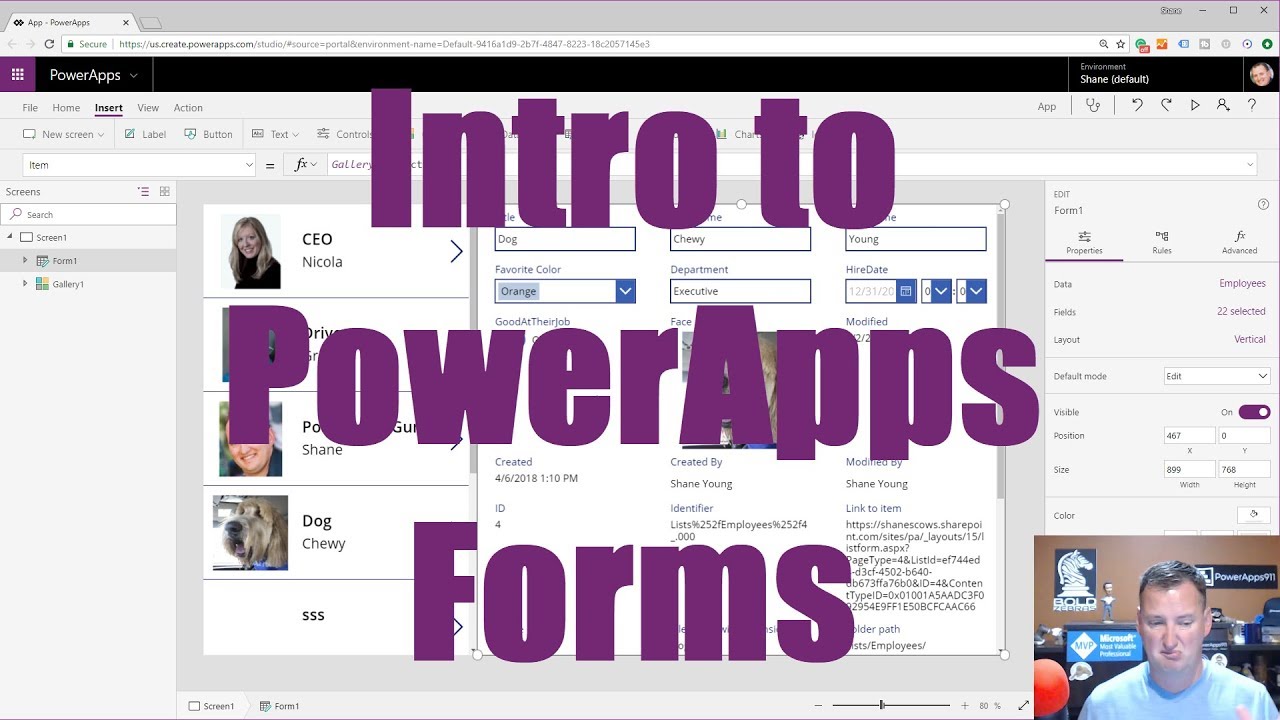
PowerApps Forms provides a powerful option for managing complex data across teams, making it a critical piece of development software for production. Follow these steps to learn how to connect to your gallery so you can design forms, add data, and manage your layouts. Follow along with Shane's video on YouTube: Getting Started with PowerApps Forms Start with a blank tablet form. Click ‘Insert’ from the top ribbon, and then select ‘Gallery’ from the available options. PowerApps will load a vertical gallery. Use the ‘Data’ tab to select your data source. It should be in a pane on the right. PowerApps will use it to populate your gallery. Creating and Viewing a New Form To create a form, use the ‘Form’ tab in the top ribbon. There should be two types available, edit and display. While an edit form will allow you to view and change information, a display form will only let you view it. Generally, you should select an edit form for more flexibility, unless you don’t want the information to be changed later on. Next, PowerApps will ask you to select a data source. You should choose the same source that was used in your gallery to make sure the program syncs the data correctly. PowerApps will now design your form. Wait a few seconds, and the new form window should pop up in the gallery. You can move and resize the window if necessary. Adding and Populating Your Data PowerApps displays the available fields for each card in the gallery. They will probably still be blank because you have not yet populated them with your data sources. Click on the box that says ‘Data Source’ in the top left and choose ‘Item’ to change the item property. Setting the item property will determine what items populate the fields. Now, type ‘Gallery1.Selected’ into the input box. PowerApps will now populate the information based on which rows you select. Editing and Managing Data Cards With your form selected, you should see the editing options on the right side. Selecting ‘Data,’ ‘Fields,’ or ‘Layout’ will open up another menu. Depending on your data source, you may have the ‘Edit data’ option. This will have PowerApps open your source for easy editing. If you have made changes to your source or added a new column, use the ‘Refresh’ option to regenerate the database or save and reopen your file to force the information to refresh. The ‘Snap to columns’ option is key to getting forms the way you want them to look. This option allows dynamic resizing of windows and ensures correct sizing every time. Choosing more columns allows you to place them more accurately and will allow you to obtain your desired layout. Creating a Custom Data Card In the ‘Fields’ section, press the ellipses to add a custom data card. Scroll down to the bottom of the list and find ‘DataCard1.’ Drag this up and place it beneath the ‘Title’ card. Press the play button to preview the app. Some whitespace should now appear beneath the title, giving the form a more professional look. You can also select a picture to embed in the table. Click on your data card and select the ‘Icons’ tab from the top ribbon to insert an image into the field. The form is now ready to have text, images, and any other type of data embedded. Managing Card Fields and Layouts Go to the list in the left pane and click ‘Form 1.’ Here, you have the option to display the fields vertically or horizontally by changing the ‘Layout’ option. PowerApps will display a card for every field that you have input into your form. Selecting a field will show the card’s configuration properties. The left pane will display each card’s options: StarVisible: Creates an asterisk in fields that are required. ErrorMessages: Hides or displays the error message output in the app. DataCardValue: General input field for changing the default behavior of the card (You will likely use this one the most) PowerApps will choose the data type in each card. It is not possible to edit data per card, and issues should be resolved through the data source. Check the formatting of the source data cell if there are any problems. Unlocking Data Cards For Further Editing Data cards are locked by default to keep users from accidentally making changes. Click on ‘Advanced’ in the card properties and select ‘Unlock to change properties’ to unlock the card for editing. This tells PowerApps that it is a custom card that you want to have privileges to edit and make changes. The card’s color should change from purple to gray. If the custom card is no longer working correctly, you can select ‘Delete this custom card’ and reselect the empty card at the bottom of the list to reset the properties back to default. It is possible to change the data displayed on the card by unchecking it from the ‘Fields’ list. Changing the display won’t remove the information; only keep it from being viewable. Implement Your Own Solutions with PowerApps Forms These steps provide the framework necessary to get started with PowerApps forms. You should now be ready to implement your own data solutions. Find out more about how to master PowerApps with our training program.
- Project Oakdale Preview for Pros
Learn all you need to know to start building Power Apps and Flows with Project Oakdale preview. Follow along with Shane's video from our YouTube Channel: PowerApps Forms offers a shared productivity suite to build and customize your own products. Project Oakdale uses this power to give you the tools to collaborate on and deploy software solutions for your business needs. Understanding how to use the integrated work environment available through Microsoft Teams will help you empower development across projects. Installation and use of Microsoft Power Apps (Preview) in Microsoft Teams will enable you to deploy your business applications with this efficient and powerful solution. Install Microsoft Power Apps (Preview) To get started in Project Oakdale Preview, you first need to install Microsoft Power Apps (Preview). To do this: Click on the ‘more apps’ option in the left rail. Search for ‘Power Apps (Preview).’ Click on the option that comes up, then choose ‘Add for me’ to install the application. Power Apps (Preview) should now be installed to your Microsoft Teams account. Right-click and pin the application to your left rail for easier access in the future. Create a New Application You should be looking at the home screen of the Power Apps (Preview) application. Click on the ‘Create an app’ button just above the list of recent applications, and you should be given the option to select a team. Each team that you create will become provisioned with its own Power Apps environment. This creates a common data service to contain the work done on the team. Rather than being globally defined, like the traditional Power Apps service, the Power Apps (Preview) provides a framework for containing provisioned applications within the specified teams. To provision a new application, you can select an existing team, or type in the name of a new one, and click ‘Create.’ Power Apps will then begin provisioning the environment. It will take a minute for the program to generate the data structure. Use the Build Environment Once the provisioning is complete, you should be in the Power Apps (Preview) build environment, which is somewhat different than the traditional Power Apps environment. To enable autosave, click on the ‘App’ button and type in the new name, then click ‘Save.’ Teams will not ask if you leave the environment without saving, so be sure to save early and often so you don’t lose your progress! Generate a New Database To set up your database, you must first create a new data table. This can be done by clicking ‘Create new table’ in the left pane of the build environment. Enter a new table name, and click ‘Create.’ This will provide you with a new data table. You will have the option to add new columns and rows to input data. Once you’ve added the necessary information, you can press the X button in the top-right of the current window. Power Apps should have populated your gallery, giving you easy access through the Teams interface. Customize Gallery Layout Now, you can add or remove, resize, and reposition the columns' layout. There are a variety of other ways to customize the gallery: 1. Buttons You can create a new button by selecting the plus symbol, then the button option, and dragging it from the left column. You can then configure the buttons by choosing their type, text, and color. Power Apps provides many nuanced options for creating buttons. Work slowly through these options to find the ones that work best for you. 2. Labels You can create a label by going to the same area where buttons were found and searching for labels instead. 3. Teams Integration A new addition in Power Apps (Preview) is the integration of Teams. By typing ‘Teams' into the text bar, you have the option to call specific data types. These options provide powerful customization of your layout. An example of this is ‘Teams.Thisteam.GroupID’ for dynamically getting the group ID of the current team. Publish to Teams Click the ‘Publish to Teams’ button in the top right of the gallery. Press ‘Next’ then select the plus symbol next to your channel before saving and closing the window. The Power Apps application should now be embedded into Microsoft Teams. View Your Build To view your built applications, click on the ‘Power Apps’ option in your left ribbon. Click ‘Build’ at the top of the window to view the build environments for your applications. Select the correct team and, if you don’t see your applications, click on ‘Dismiss’ beneath the ‘Create’ button. You should now have a list of available application environments built by your team. Click ‘See all’ to view each application and look at specific details. You also have access to any tables you have created, allowing you to view, edit, or delete your data. Here, you can easily add images, create flows, and interact with common data services. The rich power available in Power Apps is here for you to experience. Project Oakdale preview for Pros Project Oakdale preview for Pros gives you the power to automate your workflow with Microsoft Teams. Create, collaborate, and communicate through Microsoft Teams to get your work done. Learn more about how Power Apps (Preview) can help you increase productivity.
- Using SVGs in Power Apps
Ever wanted to add fun animations and visualizations to increase the appeal of your app? Power Apps supports SVGs to make your apps prettier and easier to use. Whether it’s progress bars you’re after or objects that change with user-inputted text, SVGs are a simple, powerful way to make a business application pop. In this post, we’ll take a look at how to get started with SVGs using Power Apps and explore some of the things you can do. Remember if you subscribe to our curated library, you’ll have access to download the SVG app created in our YouTube Video. What is an SVG? SVG stands for Scalable Vector Graphic. It’s a piece of XML code that defines a vector-based graphic meant to display on the web. In Power Apps, SVG objects are defined with the tag. Every attribute that the SVG has is then written out as code. Unlike other image formats, SVGs have a few unique features that make them better suited to environments like apps or the web. They: Can be created and edited with any text editor. They don’t require a fancy editing program, either. Are scalable. They’re also zoomable and won’t lose quality if they’re expanded, resized, or printed at different resolutions. Use an open standard. Anyone can access and implement them. That means a lot of resources and libraries exist out there. What Can SVGs Do in Apps? SVGs make your apps prettier and easier to use. Since it’s possible to animate every single element and attribute, there’s a lot of flexibility built right into this image format. Some common ways SVGs get utilized in business apps include: Progress Bars Indicators Animations Drop Shadows Blur Effects Dynamic Text Inputs How to Use SVGs to Make Your Apps Prettier and Easier to Use It’s easy to get started using SVGs in Power Apps. Inserting SVG codes into Power Apps is similar to inserting them into a website. To use them, follow these four steps. Insert an Image Control in Power Apps To insert an image control, select “Media” and “Image” on the Insert tab. This will create a block inside which the SVG will appear. Insert SVG Code Two ways exist to insert SVG code into Power Apps: 1. Insert code directly into the image control in Power Apps. Replace “SampleImage” with the code for the SVG. It might look like this: "data:image/svg+xml," & EncodeUrl(" ") It’s easiest to drop a new SVG code between the tags, although the first lines will remain the same: "data:image/svg+xml," & EncodeUrl(". Remember to switch all double quotes to single quotes when pasting code from another source. Likewise, the dimensions of viewBox might require some adjustment. Plenty of SVG code libraries also exist online. Consider these options to get started: W3Schools SVG Tutorial PowerApps911 Training Resources and Demo Apps 2. Insert an SVG file. Instead of inserting the code into the app yourself, you also have the option to download an SVG file and upload it into your app. After inserting the image control, choose the “Image” dropdown under the properties pane on the right hand side of the screen. Then choose “+ Add an image file.” Select an SVG file to insert a scalable vector onto the page. Modify the Properties After grabbing the code, modify the properties as necessary. SVG code can consist of either XML code or CSS-like code. If option one was used above, this can be done directly in Power Apps. If option two was used, the SVG file itself will need to be edited. Add Functionality Power Apps allows the insertion of commands to change values in an SVG code. For example, to allow users to change the stroke width (border thickness) of the SVG circle above, insert a slider by visiting the Insert tab and selecting “Slider” under “Input.” Then change the SVG code in the image control to reference the output of the slider. It should look similar to this: Remember that the ‘&’ allows you to connect one thing to another. In this case, a string of code with the output from the slider element. Get More Tips and Tricks from PowerApps911 SVGs are a great way to make your apps more visually appealing for users. They’re a good option to consider if you’re looking for impactful visuals. We’ve covered how to get started with them and provided a few useful resources to make the process simpler. Want to take it to the next level and learn to build any business applications you might need? Enroll in our master classes online.
- Search, Filter, and Set Default Values for a Combo Box in Power Apps
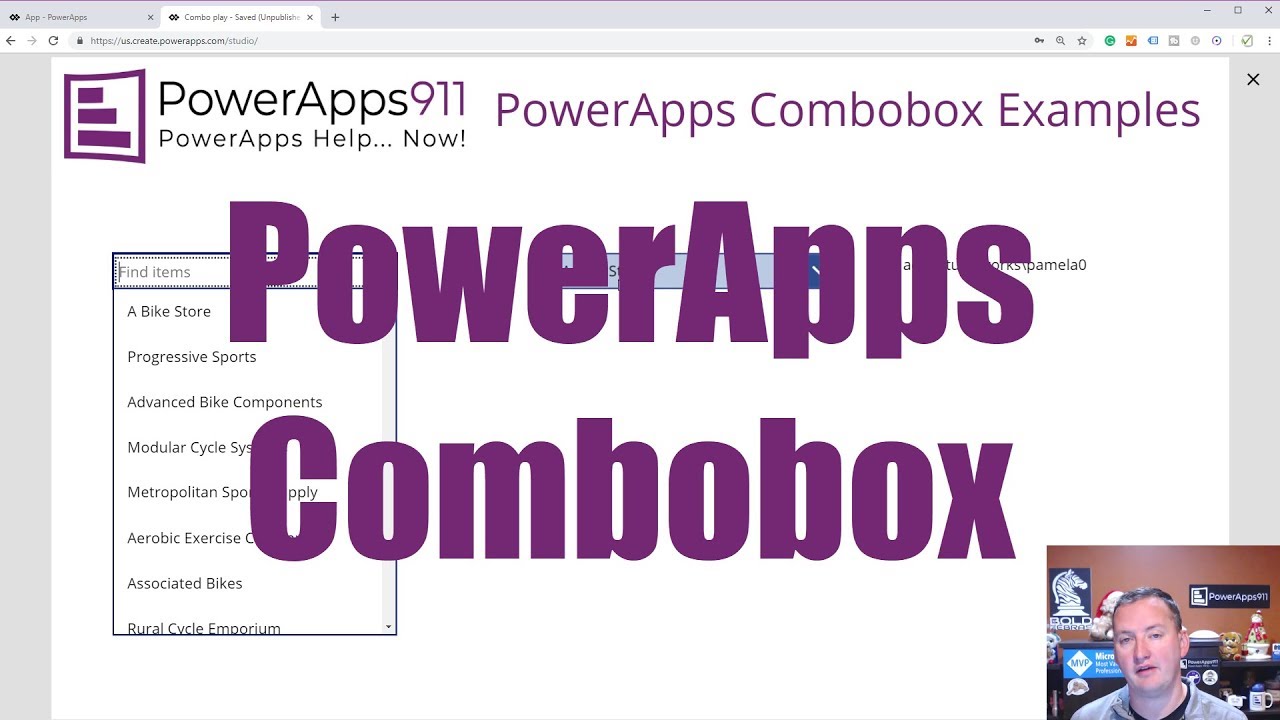
While building applications for your business, you may come across instances where you must allow users to make multiple selections from provided choices. Looking up employee records or the contact information of reps for specific brands are two such instances. Fortunately, Power Apps has a way to handle that. A combo box is a control that allows users to search for specific items and select many of those items. Since the search is performed server-side using the SearchField property, it can easily handle large data sources. Here’s a closer look at how to use a Power Apps combo box to search, filter, and set default values. Follow along with our YouTube video. How to Search, Filter, and Set Default Values for a Combo Box in Power Apps Top on the list of most useful features in Power Apps is the combo box. A combo box looks like a drop-down tool, but its functionality makes it so much more than that. Here’s how to use Power Apps combo box to search, filter, and set default values. Creating a Combo Box To create a combo box, select “Insert” then “Controls.” Choose “combo box” from the drop-down. It will default to the ComboBoxSample, but a Data pane will open to the right. Simply replace the data source in the drop-down given there. (Here’s how to add data sources to Power Apps.) Next, select the layout. Three choices exist: Single. One field of data is shown in the combo box. Double. Two fields of data are shown (our very first example used this). Person. It’s the double layout with an image. Finally, select the primary text and the secondary text (for double layouts), as well as the SearchField. How to Search SearchField governs in which field the combo box will search when the user types into the box. The default is the primary text, but you can change that. The easiest way is to simply change the value in SearchField. But if you want to search multiple fields, choose “SearchFields” from the properties drop-down next to the functions. Then, simply include the fields desired. For example, we changed: SearchFields = ["Company Name"] to SearchFields = ["Company Name", "SalesPerson"] Our combo box then searched both the company name and the salesperson name when we typed in a value. How to Filter Data Filtering is helpful when you’re dealing with a large set of data and you don’t want to overwhelm your users. In our example, we filtered our data so that combo box showed only the values where SalesPerson = Pamela. Our code on the Items property looked like this: Filter('[SalesLT].[Customer]', SalesPerson = "adventure-works\pamela0") How to Set a Default Value With a combo box, “default” isn’t a useful property. To set the default value, use “DefaultSelectedItems” instead. This causes specified records to display by default. To set DefaultSelectedItems, use the Filter function for the same datasource you used for your Items property. Other Combo Box Functions There are a few neat functions with combo box that we covered. These are worth keeping in mind because they will come in handy: SelectMultiple: If you don’t want users to be able to make multiple selections in the combo box, then set SelectMultiple to “false.” SelectedItems: The property to recall the output of a combo box is SelectedItems which returns a table of information from your combo box selection. For example, in this tutorial we populated a drop down using “ComboBox5.SelectedItems.EmailAddress”. Concat: To turn a field in the table output from SelectedItems into a string of text, we used: Concat(ComboBox5.SelectedItems, EmailAddress, ", ") DisplayFields: Change these to alter what data comes back when a user makes a selection. Master Power Apps Combo Box and More with Us Combo box may look like a drop-down, but it has more functionalities and requires some slightly different functions. We’ve covered how to search, filter, and set values in a Power Apps combo box plus given you a heads up about especially useful functions. Just remember: combo box likes to pass records. As long as you nail that, you’ll have no trouble using combo box to pull the data your business needs. Want more tips? Enroll in our master classes online.